Classroom & live online 24 Hours Verifiable certificate Syllabus ↓

MOS: Microsoft Office Word Associate Course

Master Microsoft Word for business documents: formatting, tables, references and review tools.

Your roadmap — from admission to certificate

  1. Free counselling

    Talk to our counsellor — choose the right course, batch time and mode.

  2. Admission

    Join at a CADD centre near you or online. You get your student login and ID card.

  3. Learn step by step

    24 Hours of hands-on MOS: Microsoft Office Word Associate classes — in the classroom or live online.

    Syllabus in under constructionGetting StartedManipulating TextFormatting Text and ParagraphFormatting Documents to PrintDistributing DocumentsUsing TablesWorking with IllustrationsReference Creation and Document Collaboration
  4. Practice & project

    Exercises in every class and a final project, checked by your trainer.

  5. Course completion certificate + completion badge

    Finish the course and get your course-completion certificate and a digital completion badge with your name.
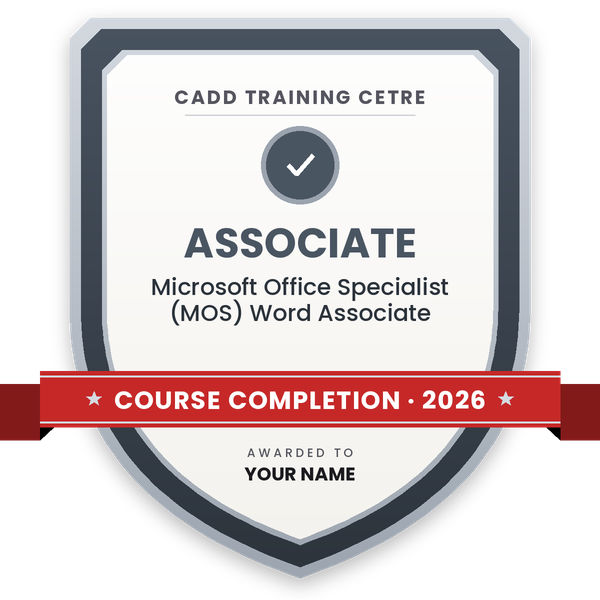
    Course-completion badge — Microsoft Office Specialist (MOS) Word Associate
    Course-completion badge
    Course
    Microsoft Office Specialist (MOS) Word Associate
    Issued by
    CADD Training Cetre
    Training
    Classroom or live online
    How to earn
    Complete the course and its project
    With your name and year · its own verify link · “Add to profile” on LinkedIn
  6. Certification exam

    Take the certification exam: a theory test and a practical task — at the centre or online.

  7. Certified certificate + marksheet

    Pass the exam and get the certified certificate with your marksheet. Anyone can check it online with its QR code.

  8. Certified badge

    Your certified badge — add it to LinkedIn and share it anywhere; it opens its own verify page.
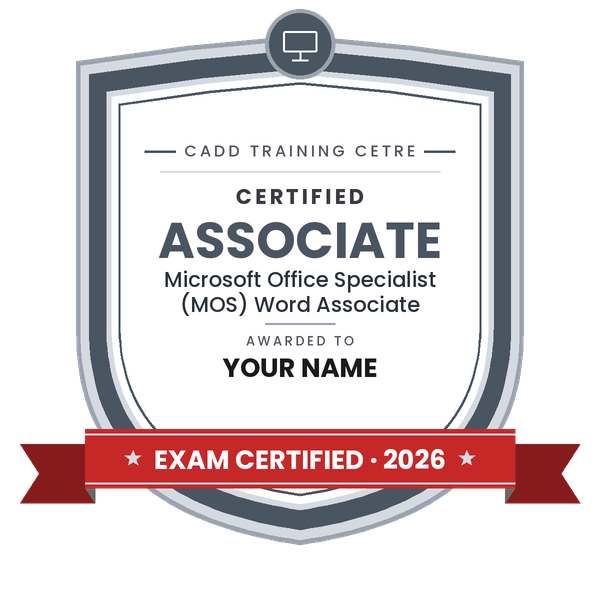
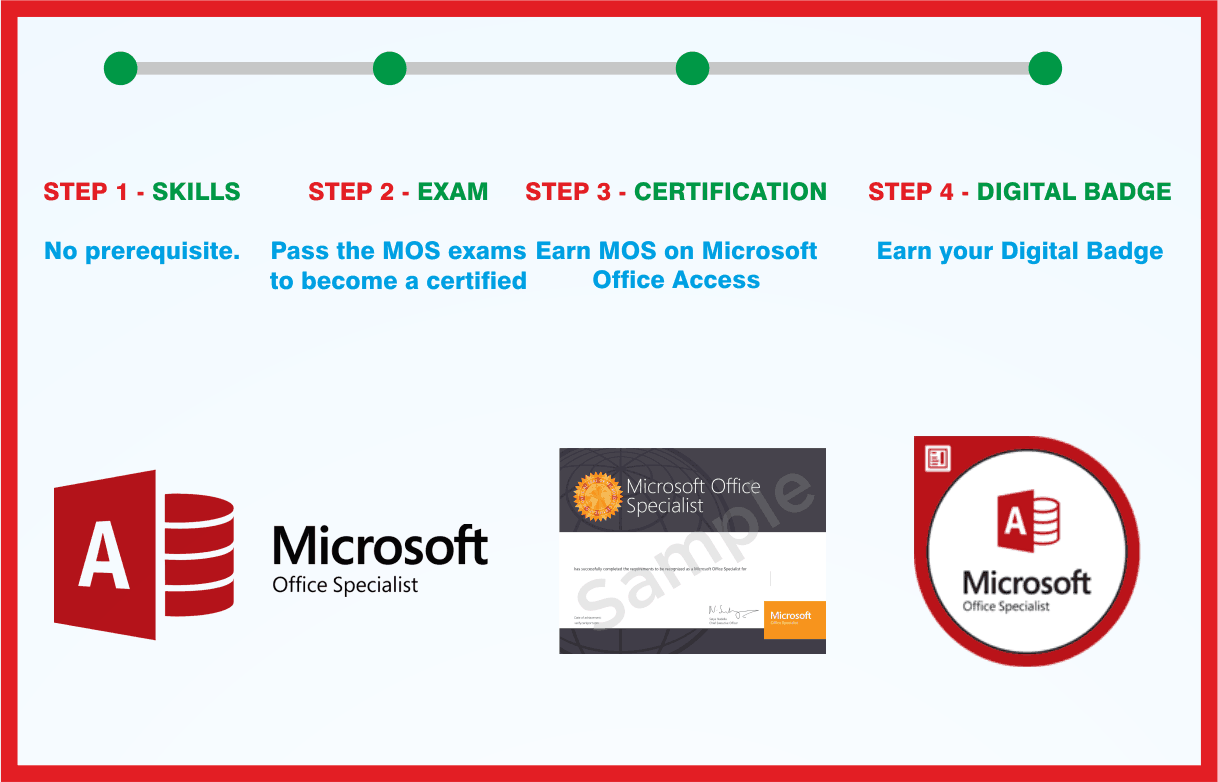
    Certified badge — Microsoft Office Specialist (MOS) Word Associate
    Certified badge
    Course
    Microsoft Office Specialist (MOS) Word Associate
    Issued by
    CADD Training Cetre
    Training
    Classroom or live online
    How to earn
    Pass the certification exam
    You also get
    Certified certificate + marksheet
    With your name and year · its own verify link · “Add to profile” on LinkedIn
  9. Make your CV & apply for jobs

    Make your CV in your student panel (Career → My CV) — your course, certificates and projects are added for you. Send it as a link with a preview picture, and apply to jobs and Hire Me requests from companies.

About the MOS: Microsoft Office Word Associate course

This Microsoft® Word 2016 Core Certification Guide teaches the information worker how to use core skills to work with business documents such as letters, forms, and newsletters. The user will acquire fundamental concepts and skills, building on this foundation as they continue to increase their productivity to apply creative features and enhance various documents. Students who complete this course will have reviewed all of the exam objectives and be prepared to take the Microsoft Office Specialist Word 2016 Core Exam Successful completion of the certification exam provides a competitive advantage by validating the knowledge and skill sets for individuals who may be seeking employment or further job opportunities in their careers.

You will be able to

  • Create, navigate and manage Word documents and templates
  • Format text, paragraphs, sections and pages with styles and themes
  • Build and format tables and multi-level lists
  • Insert footnotes, endnotes, citations and an automatic table of contents
  • Add pictures, shapes, SmartArt and text boxes with correct text wrapping
  • Review documents using comments and Track Changes
  • Inspect, protect and print or share documents in the right format

Who it is for

  • College students who write reports, projects and assignments
  • Office staff, assistants and clerks who prepare letters and forms
  • Job seekers preparing for office and back-office roles
  • Learners preparing for the Microsoft Office Specialist Word Associate exam

What you need

  • Basic computer skills and typing familiarity
  • Access to Microsoft Word on a PC for practice and live online classes

Courses that include MOS: Microsoft Office Word Associate

Microsoft Office Specialist (MOS) Word AssociateMicrosoft Office Specialist (MOS) · 24 Hours
Enquire →
Data Entry Operator – Associate Career ProgramAssociate Career Program · 144 Hours · 3 software
Enquire →
Microsoft Office Specialist Associate in Office 365 and Office 2019Microsoft Office Specialist (MOS) · 72 Hours · 3 software
Enquire →
Microsoft Office Specialist Associate in Office 365 and Office 2019Microsoft Office Specialist (MOS) · 72 Hours · 3 software
Enquire →
Computer Teacher / Instructor – Associate Career ProgramAssociate Career Program · 198 Hours · 4 software
Enquire →
Data Entry Operator – Professional Career ProgramProfessional Career Program · 368 Hours · 5 software
Enquire →
Office Executive / Computer Operator – Associate Career ProgramAssociate Career Program · 136 Hours · 5 software
Enquire →
Computer Teacher / Instructor – Professional Career ProgramProfessional Career Program · 298 Hours, 1 Years · 7 software
Enquire →
Microsoft Office Specialist Master in Microsoft Office 2016Microsoft Office Specialist (MOS) · 192 Hours · 8 software
Enquire →
Office Executive / Computer Operator – Professional Career ProgramProfessional Career Program · 224 Hours, 3 Months · 9 software
Enquire →

MOS: Microsoft Office Word Associate Syllabus

9 chapters · 123 topics
01 Syllabus in under construction 1 topic
  1. Syllabus in under construction
02 Getting Started 12 topics
  1. What Is Word?
  2. Looking at the Screen..
  3. Accessing Commands and Features
  4. Using the Backstage
  5. Working with Text..
  6. Moving Around in a Document
  7. Working with Documents..
  8. Creating a New Document
  9. Switching Between Documents
  10. Saving Documents
  11. Closing a Document
  12. Opening a Document
03 Manipulating Text 15 topics
  1. Changing the View..
  2. Adjusting the View
  3. Using Show/Hide 
  4. Splitting the Window
  5. Selecting Text..
  6. Selecting Consecutive Text
  7. Selecting Non-Consecutive Text
  8. Working with Text..
  9. Using Undo
  10. Using Repeat or Redo
  11. Inserting Special Characters
  12. Using Cut, Copy, and Paste
  13. Finding and Replacing Items..
  14. Finding Items
  15. Replacing Items
04 Formatting Text and Paragraph 14 topics
  1. Formatting Characters..
  2. Using the Font Dialog Box
  3. Formatting Paragraphs..
  4. Aligning Text
  5. Changing the Spacing
  6. Indenting Paragraphs
  7. Setting Tabs
  8. Using the Format Painter
  9. Formatting with Styles..
  10. Using Quick Styles
  11. Using the Styles Pane
  12. Organizing List Information..
  13. Customizing the Lists
  14. Creating a Multilevel List
05 Formatting Documents to Print 16 topics
  1. Modifying the Page Setup..
  2. Changing the Paper Size
  3. Changing the Orientation
  4. Changing the Margins
  5. Inserting Page Breaks
  6. Working with Section Breaks
  7. Working with Columns
  8. Using Headers and Footers..
  9. Inserting Page Numbers
  10. Creating Headers and Footers
  11. Working with Document Style Elements..
  12. Adding Watermarks
  13. Adding Background Colors
  14. Adding Page Borders
  15. Applying Themes
  16. Using Document Style Sets
06 Distributing Documents 16 topics
  1. Proofing Your Document
  2. Navigating with References..
  3. Using the Navigation Pane
  4. Using the Go To Command
  5. Working with Hyperlinks
  6. Creating Bookmarks
  7. Navigating within Documents..
  8. Preparing to Print
  9. Inspecting a Document..
  10. Maintaining Compatibility
  11. Using the Document Inspector
  12. Checking Documents for Accessibility
  13. Sharing Documents..
  14. Share Documents Electronically
  15. Changing Link Settings
  16. Sharing Documents Stored in OneDrive - Personal
07 Using Tables 16 topics
  1. Working with Tables
  2. Inserting a Table..
  3. Working with Text
  4. Formatting the Table
  5. Modifying Tables..
  6. Adjusting the Width or Height
  7. Inserting Rows, Columns or Cells
  8. Deleting Rows, Columns or Cells
  9. Merging and or Splitting Cells
  10. Setting Row Headings
  11. Using Table Styles
  12. Modifying Cells
  13. Converting Tabular Information..
  14. Converting a Table to Text
  15. Converting Text to a Table
  16. Sorting Data
08 Working with Illustrations 14 topics
  1. Inserting Images..
  2. Inserting Picture Files
  3. Inserting Screenshots
  4. Manipulating Pictures
  5. Working with Shape Objects..
  6. Drawing Shapes
  7. Using Text Boxes
  8. Manipulating Shapes
  9. Using SmartArt..
  10. Using the Text Pane
  11. Manipulating the SmartArt
  12. Working with 3D Models..
  13. Inserting 3D Models
  14. Formatting 3D Models
09 Reference Creation and Document Collaboration 19 topics
  1. Why Use References?
  2. Using Footnotes and Endnotes
  3. Inserting Citation Sources..
  4. Inserting a Bibliography
  5. Managing Your Sources
  6. Creating a Table of Contents..
  7. Updating the Table of Contents
  8. Document Collaboration..
  9. Working with Comments
  10. Adding Comments
  11. Reviewing Comments
  12. Replying to Comments
  13. Resolving Comments
  14. Deleting Comments
  15. Using Track Changes..
  16. Reviewing Tracked Changes
  17. Accepting and Rejecting
  18. Tracked Changes..
  19. Locking and Unlocking Change Tracking

Ratings & reviews

Students rate the course after they finish it — their ratings appear here.

MOS: Microsoft Office Word Associate course — FAQ

What is the MOS Word Associate certification about?

Microsoft Office Specialist (MOS) Word Associate measures core Word skills: managing documents, formatting text and paragraphs, tables and lists, references, graphics and collaboration tools. This course teaches those skill areas.

Who can join the Microsoft Word Associate course?

Students, office staff, teachers, job seekers and anyone who writes documents can join. Basic computer use is enough; no earlier Word training is needed.

How long is the MOS Word Associate course?

The course is 24 hours long, with practice files for every objective so you can apply each feature as you learn it.

Can I learn MS Word online with CADD Training Centre?

Yes, both modes run: classroom batches at CADD Training Centre and live online classes. In MOS Word Associate online sessions you practise each objective on your own copy of Word with the trainer.

What certificate will I get after the Word course?

Yes. Completing the MOS Word Associate course earns you a CADD Training Centre certificate with a QR code and verification code, so an office employer can confirm it online. The counsellor can also guide you on the Microsoft Office Specialist exam.

Which jobs need Microsoft Word skills?

Word skills are expected for office assistant, data entry operator, executive assistant, documentation executive, teacher, legal assistant and many back-office roles.

What is the difference between Word Associate and Word Expert?

Word Associate covers everyday document work such as formatting, tables and references. Word Expert goes further into styles, templates, mail merge, building blocks, forms, macros and document protection.

More questions? Ask our counsellor or read the general FAQ.
MOS: Microsoft Office Word Associate24 Hours
Enquire now