Classroom & live online 40 Hours Verifiable certificate Syllabus ↓

Microsoft Project Course

Learn Microsoft Project: tasks, Gantt charts, dependencies, resources, costs, baselines and tracking.

Your roadmap — from admission to certificate

  1. Free counselling

    Talk to our counsellor — choose the right course, batch time and mode.

  2. Admission

    Join at a CADD centre near you or online. You get your student login and ID card.

  3. Learn step by step

    40 Hours of hands-on Microsoft Project classes — in the classroom or live online.

    Getting Started Microsoft ProjectProject TasksWorking with a Project FileResourcing Your ProjectThe TimelineTracking and Managing Your ProjectWorking with Calendar and Working TimeReporting Project InformationWorking with Multiple Project and Master ReportRecurring task in action
  4. Practice & project

    Exercises in every class and a final project, checked by your trainer.

  5. Course completion certificate + completion badge

    Finish the course and get your course-completion certificate and a digital completion badge with your name.
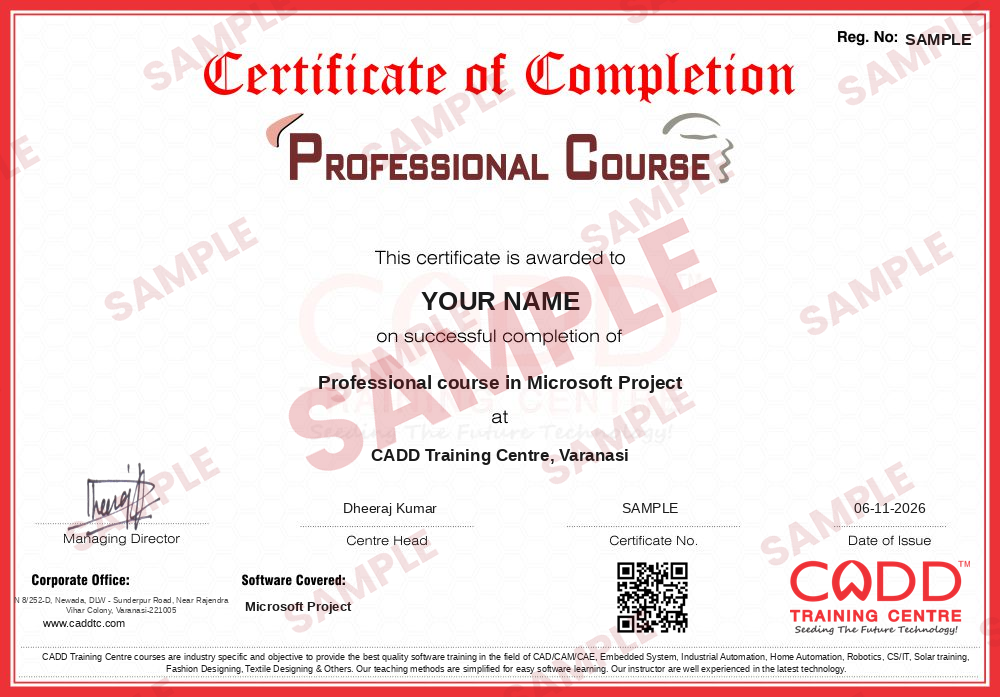
    Sample course-completion certificate — Professional course in Microsoft Project
    Course-completion certificate (sample) — Professional course in Microsoft Project · verifiable online
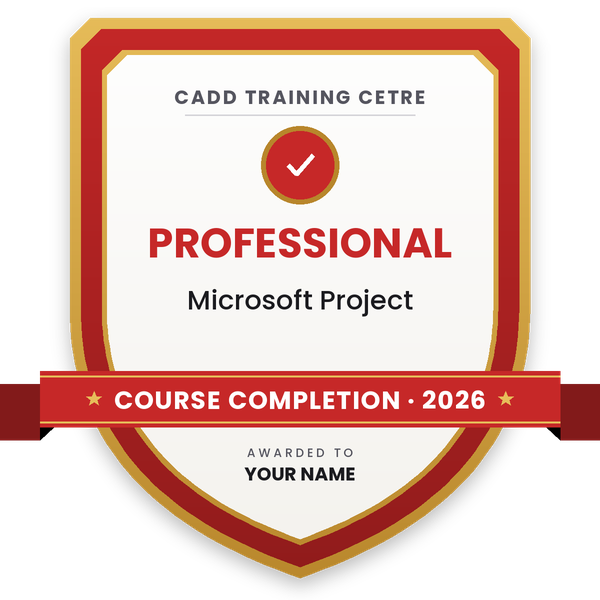
    Course-completion badge — Professional course in Microsoft Project
    Course-completion badge
    Course
    Professional course in Microsoft Project
    Issued by
    CADD Training Cetre
    Training
    Classroom or live online
    How to earn
    Complete the course and its project
    With your name and year · its own verify link · “Add to profile” on LinkedIn
  6. Certification exam

    Take the certification exam: a theory test and a practical task — at the centre or online.

  7. Certified certificate + marksheet

    Pass the exam and get the certified certificate with your marksheet. Anyone can check it online with its QR code.

  8. Certified badge

    Your certified badge — add it to LinkedIn and share it anywhere; it opens its own verify page.

    Certified badge — Professional course in Microsoft Project
    Certified badge
    Course
    Professional course in Microsoft Project
    Issued by
    CADD Training Cetre
    Training
    Classroom or live online
    How to earn
    Pass the certification exam
    You also get
    Certified certificate + marksheet
    With your name and year · its own verify link · “Add to profile” on LinkedIn
  9. Make your CV & apply for jobs

    Make your CV in your student panel (Career → My CV) — your course, certificates and projects are added for you. Send it as a link with a preview picture, and apply to jobs and Hire Me requests from companies.

About the Microsoft Project course

Microsoft Project is project scheduling and management software used by construction firms, engineering companies, IT teams, manufacturers and consultancies. Planners use it to list tasks, link them into a schedule, assign people and equipment, estimate cost and track progress, so managers can see early whether a project is on time and within budget.

This 40-hour course at CADD Training Centre covers the full planning cycle in MS Project: setting project information and calendars, creating a task list and summary tasks, linking dependencies, reading the critical path in the Gantt Chart, assigning and levelling resources, adding costs, saving a baseline, entering actual progress and preparing views and reports. You practise hands-on on the software with a sample building or engineering project, in the classroom at a CADD centre or in live online classes.

The course helps engineers and managers work as planning engineers, project coordinators or project control assistants. Those working on large EPC or infrastructure projects often add Primavera P6 next.

You will be able to

  • Set up a new project with start date, calendars and working time
  • Build a task list with summary tasks, milestones and an outline (WBS) structure
  • Link tasks with dependencies, lead and lag time and constraints
  • Identify the critical path and slack using Gantt Chart and Network Diagram views
  • Assign work, material and cost resources and resolve over-allocation
  • Save a baseline, update progress and compare planned with actual
  • Create custom views, filters, groups and reports for stakeholders

Who it is for

  • Civil, mechanical, electrical and IT engineers who plan or track projects
  • Project coordinators and assistant project managers
  • MBA and management students interested in operations or project management
  • Site engineers who report progress to head office

What you need

  • Basic computer skills and familiarity with Excel
  • General understanding of how projects are planned is helpful
  • For live online classes: a Windows PC with Microsoft Project installed or available through the class

Courses that include Microsoft Project

Professional course in Microsoft ProjectProfessional Course · 40 Hours
Enquire →
Project Planning Engineer (Primavera / MS Project) – Associate Career ProgramAssociate Career Program · 94 Hours · 3 software
Enquire →
Civil Site Engineer – Professional Career ProgramProfessional Career Program · 1134 Hours · 6 software
Enquire →
Project Planning Engineer (Primavera / MS Project) – Professional Career ProgramProfessional Career Program · 194 Hours · 6 software
Enquire →

Microsoft Project Syllabus

13 chapters · 82 topics
01 Getting Started Microsoft Project 8 topics
  1. Introduction of Microsoft Project and It's Release History
  2. How to download and install MSP
  3. What is Project Management & Understanding It's Workflow
  4. Explore the Project user interface
  5. Manage files and set options in the Backstage view
  6. Setup A New Project File
  7. Entering Project Properties And Information
  8. Using One Of The Project Template
02 Project Tasks 13 topics
  1. Adding tasks with duration
  2. Organizing Tasks Into Logical Group
  3. Moving, Deleting And Inserting New Task Row
  4. Making A Task Inactive/ Active
  5. Creating Milestones
  6. Working with Task Duration and Estimated task Duration
  7. Adding Extra Notes And Attachment To Tasks
  8. Adding The Project Summary Tasks
  9. Using Method Of Linking The Tasks
  10. Understanding & Defining Different Task Link Type
  11. Adding A Lag And Exploring Elapsed Type
  12. Spell Check And Format The Task Pane
  13. Finding And Replacing Text In The Task Pane
03 Working with a Project File 11 topics
  1. Navigating To A Date Or Task
  2. Changing The Date Zoom In The Gantt Chart
  3. Shorting Project Tasks
  4. Filtering Project Tasks And Filtering Option
  5. Highlighting importance Project tasks
  6. Grouping Project task into logical group
  7. Assigning Deadline constraints
  8. Exploring constraints type
  9. Investigating calendar and network diagram view
  10. Making use of the task inspector
  11. Determining the critical path
04 Resourcing Your Project 10 topics
  1. Understanding the Resource Type Available
  2. Adding Resource in the Project
  3. Assigning Resource to Tasks
  4. Understanding the Task Type and their Effect on Assigning Work Resources
  5. Multiple Resource Assignment to Multiple Task
  6. Adding Fixed Costs to a Project
  7. Using a Split View to Dig Deeper in to a Project
  8. Option for Dealing with Resource Overallocation
  9. Adding Overtime in to a Task
  10. Applying resource leveling
05 The Timeline 5 topics
  1. Display or Hide the Timeline and Add/Remove task
  2. Filter Displayed Tasks and Use Callout Task
  3. Zoom and pan in or out
  4. Editing date and text formatting
  5. Exporting the timeline to other program
06 Tracking and Managing Your Project 6 topics
  1. Moving the Project Start Date and The Save Baseline
  2. Changing the Current Date and Format the Current Date Line
  3. Updating Individual Task Progression
  4. Updating Multiple Task Progression
  5. Tracking Gantt View for Monitoring Project
  6. Manually Splitting Tasks
07 Working with Calendar and Working Time 7 topics
  1. The Working Time Default
  2. Viewing and Amending the Standard Calendar
  3. Amending Work Resources Calendar
  4. Creating Recurring Absence Patterns
  5. Creating and Assigning a Custom Calendar
  6. Assigning a Calendar Directly to a Task
  7. Making Your Custom Calendar Available to Other Projects
08 Reporting Project Information 9 topics
  1. Printing Setup for Gantt Chart
  2. Choosing One of The New Project Reports
  3. Creating Your Own Chart Report
  4. Creating New Report From Nothing
  5. Copying Reports Between Projects and Deleting Reports
  6. Deleting Report
  7. Exporting New Report to pdf
  8. Using the visual Reports Export Option
  9. Exporting Project Data to Excel
09 Working with Multiple Project and Master Report 6 topics
  1. Why Have Master Projects?
  2. Creating and Using the Master Project
  3. Creative Link Between Sub Project
  4. Creating a Resource Pool
  5. Using the Resource in Multiple Project
  6. Keeping the Resource Pool Updated
10 Recurring task in action 2 topics
  1. Recurring task in action
  2. Editing and removing recurring task
11 WBS (Work Breakdown System) Code 2 topics
  1. What is WBS?
  2. Creating and Using Your Own WBS Code
12 Global Template and Global Setting 2 topics
  1. Understanding the Global Template and Using The organizer
  2. Create and Customize Your Own Gantt Chart
13 ShortCUT Digital Guide 1 topic
  1. Short-cut Guide

Ratings & reviews

Students rate the course after they finish it — their ratings appear here.

Microsoft Project course — FAQ

What is MS Project used for?

MS Project is used to plan and control projects. You enter tasks and durations, link them, assign resources and costs, and the software builds a Gantt chart, shows the critical path and helps you track progress against the plan.

Who can learn Microsoft Project?

Engineers, project coordinators, managers and management students can learn it. You only need basic computer skills; Excel familiarity and some project experience make the topics easier to relate to.

How long is the MS Project course?

The Microsoft Project course is 40 hours. It covers scheduling basics through to resources, costs, baselines, tracking and reports, with practice on a sample project.

Is the MS Project course available online?

Yes. Microsoft Project is taught live online as well as in CADD Training Centre classrooms. Online, you build the sample project plan step by step on your PC with screen sharing.

Will I get a certificate for the MS Project course?

You do. Finishing Microsoft Project gives you a CADD Training Centre certificate, and because it can be verified online, a project management office can trust it without calling the centre.

Which jobs use MS Project skills?

MS Project is used by planning engineers, project coordinators, project control assistants, PMO executives and site managers who prepare schedules and progress reports.

Should I learn MS Project or Primavera P6?

Learn MS Project if you work on small and mid-size projects or in IT and general management. Choose Primavera P6 if you target large construction, EPC or infrastructure projects. Many planners learn both.

Is Microsoft Project easy for beginners?

Yes. Its ribbon and Gantt chart look familiar to Office users. The main learning is in planning concepts such as dependencies, constraints and resource levelling, which the course explains with examples.

More questions? Ask our counsellor or read the general FAQ.
Microsoft Project40 Hours
Enquire now