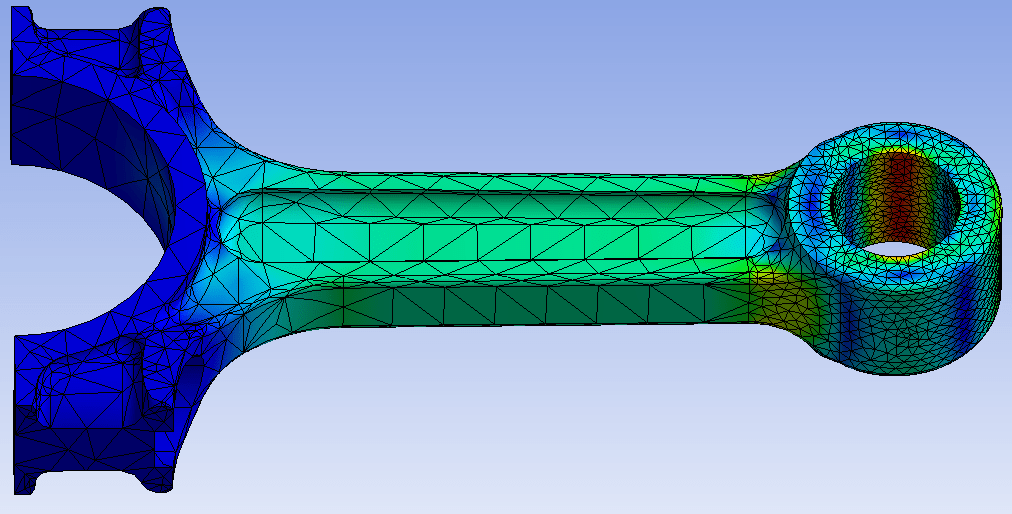
Classroom & live online 60 Hours Verifiable certificate Syllabus ↓

CATIA for Design Engineer Course

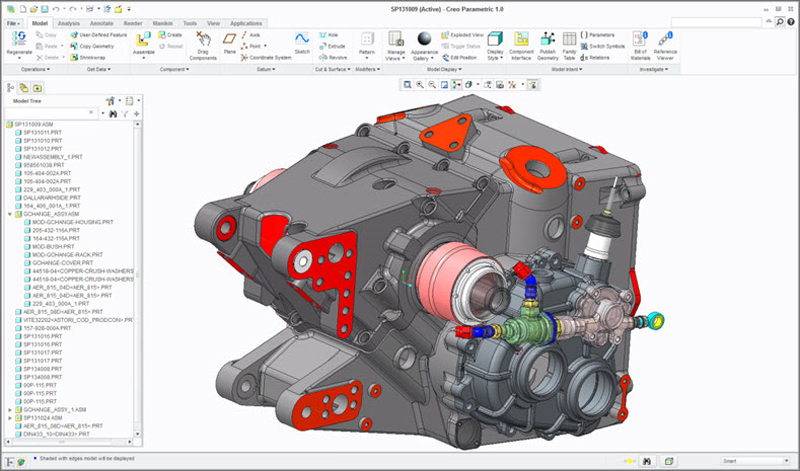
CATIA course for design engineers: sketcher, part design, surfaces, assembly and drafting.

★★★★★ 5.0 1 rating

Your roadmap — from admission to certificate

  1. Free counselling

    Talk to our counsellor — choose the right course, batch time and mode.

  2. Admission

    Join at a CADD centre near you or online. You get your student login and ID card.

  3. Learn step by step

    60 Hours of hands-on CATIA for Design Engineer classes — in the classroom or live online.

    Basic Features of CATIADrawing Sketches Using Sketcher Tools-IDrawing Sketches Using Sketcher Tools-IIDrawing Display ToolsEditing and Modifying Sketches (Operation Tools)Sketch Tools & User selection FilterApplying Geometrical ConstraintsConstraining SketchesReference ElementsSketch-Based Features-I
  4. Practice & project

    Exercises in every class and a final project, checked by your trainer.

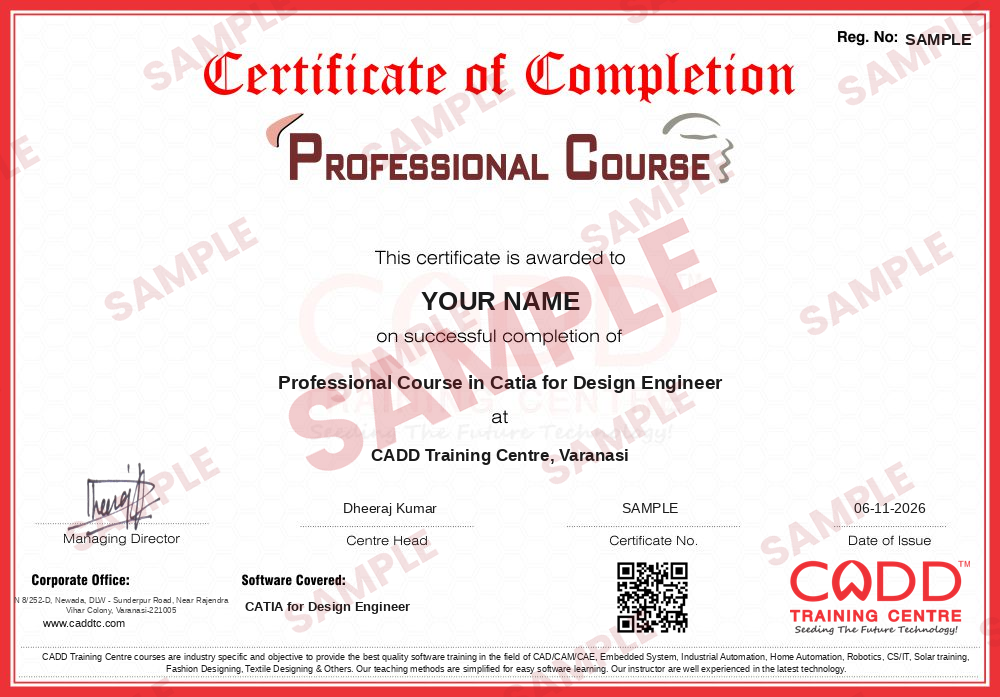
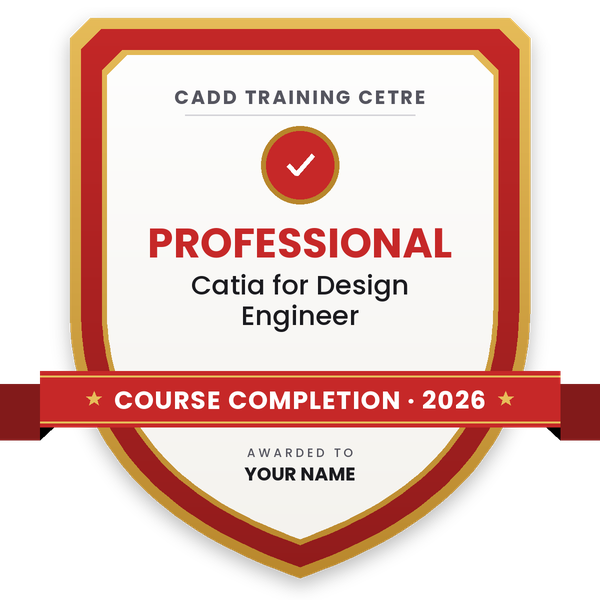
  5. Course completion certificate + completion badge

    Finish the course and get your course-completion certificate and a digital completion badge with your name.

    Sample course-completion certificate — Professional Course in Catia for Design Engineer
    Course-completion certificate (sample) — Professional Course in Catia for Design Engineer · verifiable online
    Course-completion badge — Professional Course in Catia for Design Engineer
    Course-completion badge
    Course
    Professional Course in Catia for Design Engineer
    Issued by
    CADD Training Cetre
    Training
    Classroom or live online
    How to earn
    Complete the course and its project
    With your name and year · its own verify link · “Add to profile” on LinkedIn
  6. Certification exam

    Take the certification exam: a theory test and a practical task — at the centre or online.

  7. Certified certificate + marksheet

    Pass the exam and get the certified certificate with your marksheet. Anyone can check it online with its QR code.

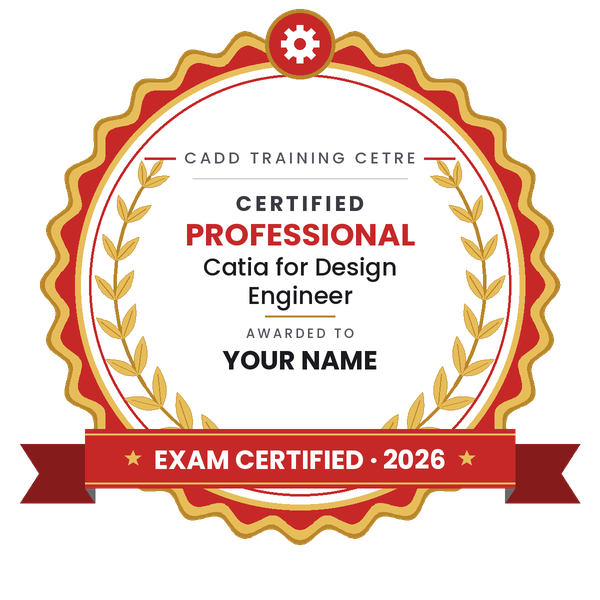
  8. Certified badge

    Your certified badge — add it to LinkedIn and share it anywhere; it opens its own verify page.

    Certified badge — Professional Course in Catia for Design Engineer
    Certified badge
    Course
    Professional Course in Catia for Design Engineer
    Issued by
    CADD Training Cetre
    Training
    Classroom or live online
    How to earn
    Pass the certification exam
    You also get
    Certified certificate + marksheet
    With your name and year · its own verify link · “Add to profile” on LinkedIn
  9. Make your CV & apply for jobs

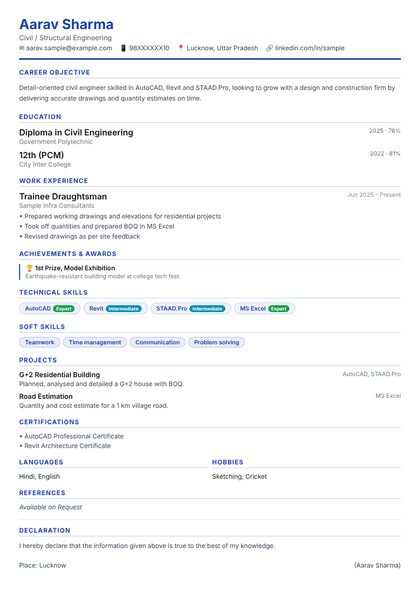
    Make your CV in your student panel (Career → My CV) — your course, certificates and projects are added for you. Send it as a link with a preview picture, and apply to jobs and Hire Me requests from companies.

About the CATIA for Design Engineer course

Multidisciplinary Approach

CATIA provides a multidisciplinary approach when it comes to product design and development. It addresses the specific needs of various disciplines to improve how organizations and companies conceive, realize, and develop new products.

Product Design And Styling

As an example, the product design software offers advanced surface modeling capabilities to transportation and industrial designers. Because of this, they will be able to analyze and visualize aesthetic and ergonomic shapes to achieve the highest Class-A surface quality.

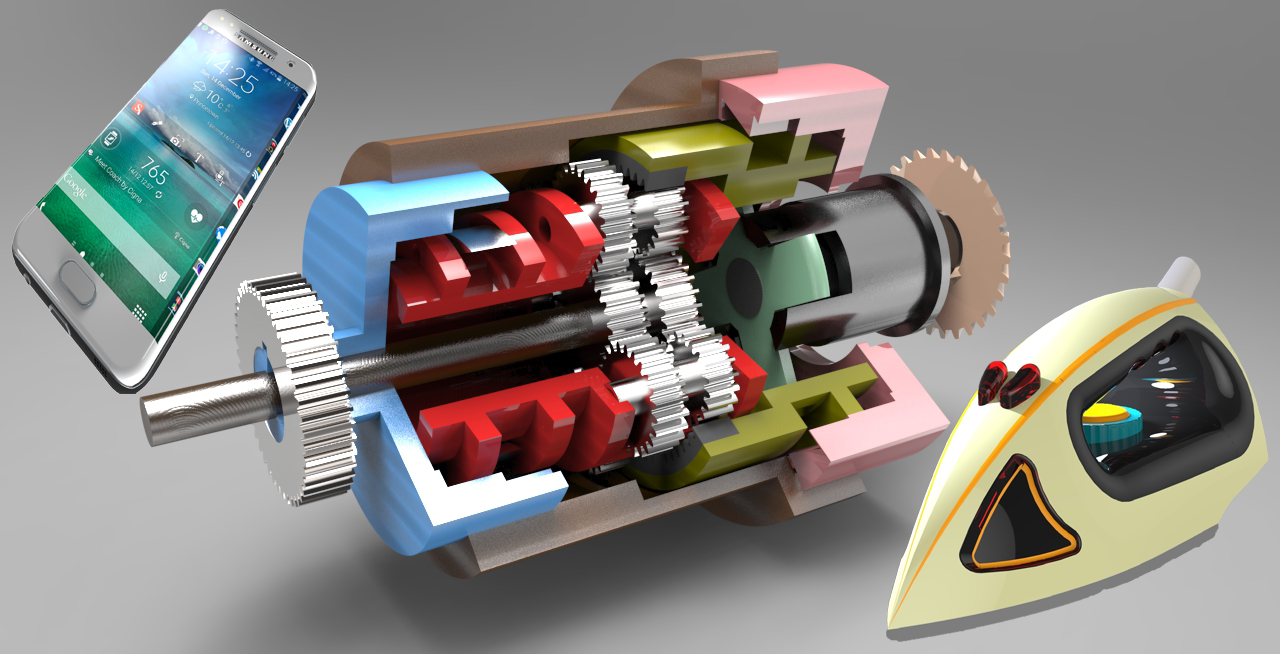
Creative designers can also access a set of tools that permits them to create and explore conceptual ideas. Using a unique 3D sketching technology, they can import 2D sketches and come up with design ideas. Likewise, virtual experience designers can produce high-quality renderings using global illumination, and reflections and shadows that are physically correct.

Engineering

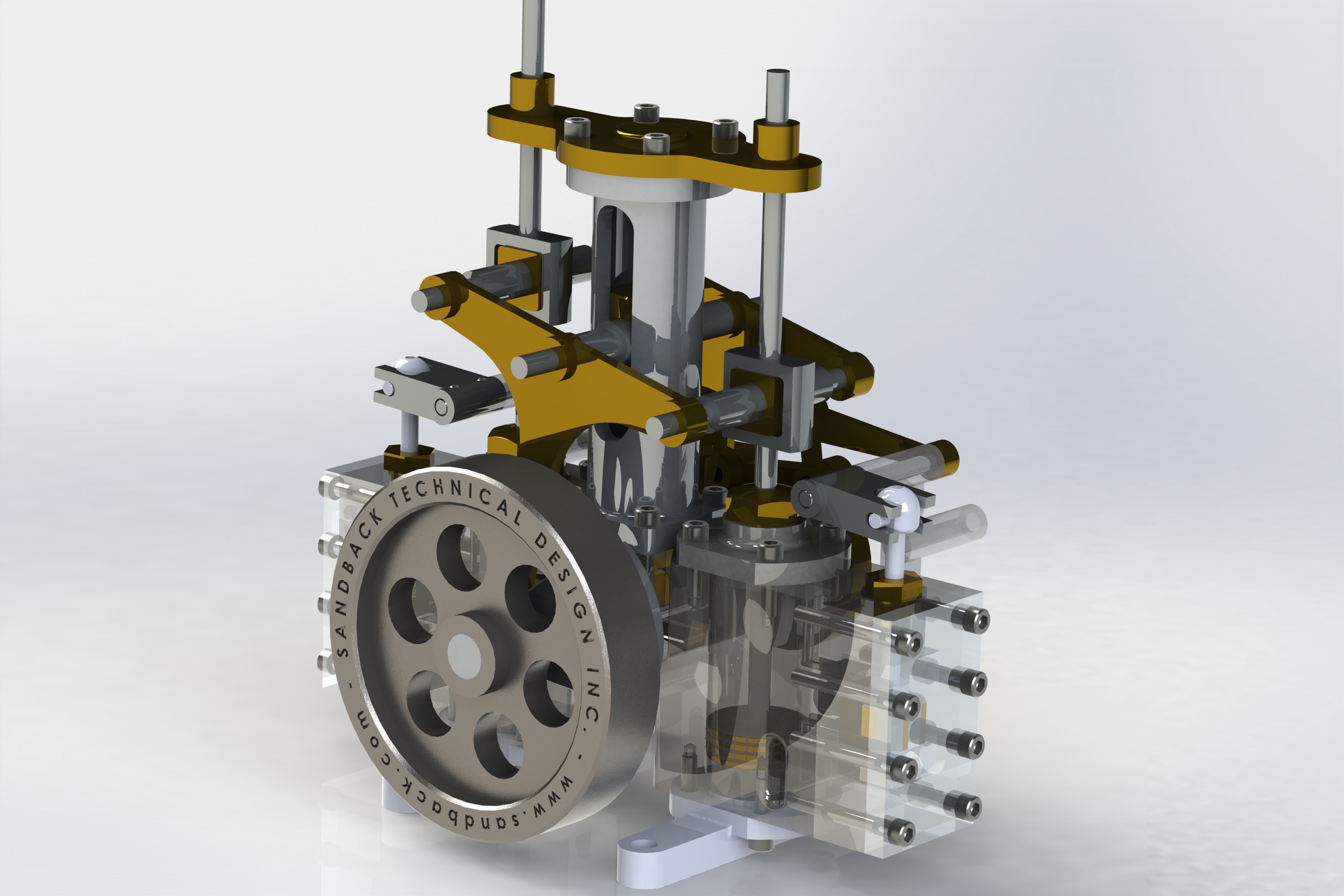
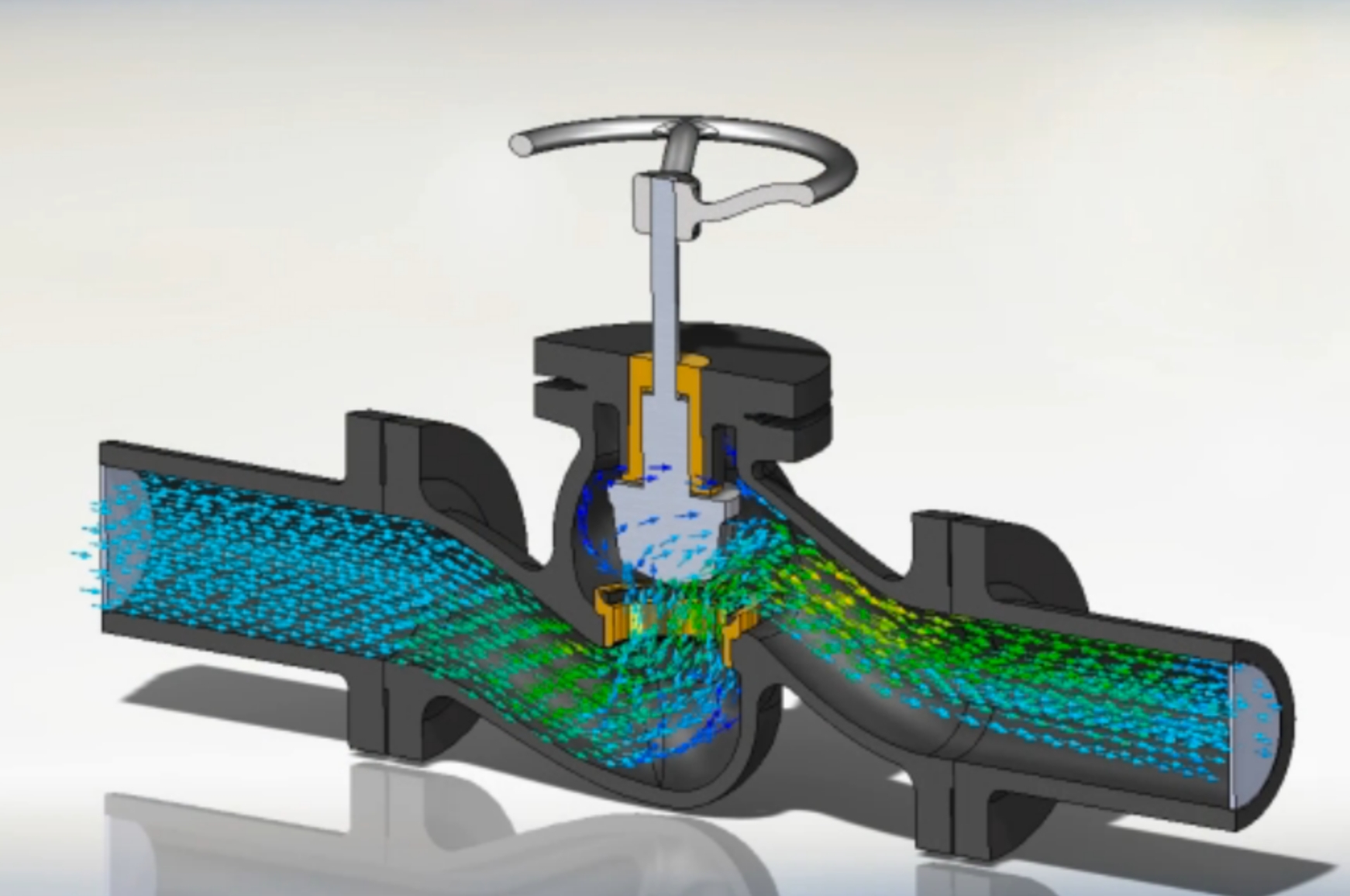
CATIA allows mechanical engineers to gain insights into the factors that affect the performance and quality of mechanical products through the aid of its 3D modeling tools. What’s great about this is that they will be to obtain such insights early in the product development process.They can develop and analyze mechanical products in their operating environments through digital prototyping, analysis, and simulation.

Systems Engineering

To facilitate the creation and validation of complex systems and products, CATIA delivers a development platform to systems engineers and architects, and developers which combines cross-discipline modeling, simulation, verification, and business process support. CATIA provides them with the ability to integrate embedded systems and 3D design processes so they can better simulate complex systems and products.

In addition, through requirements engineering, they will be able to ensure compliance with market requirements and regulations, and at the same time reduce the overall cost of system and product development.

Collaborative 3D Environment

CATIA is built with a collaborative 3D environment which permits users and stakeholders to be actively involved in the design process anywhere and anytime. This design environment can be accessed through 3D dashboards, and it serves as a single source of truth.

As an example, designers can interact with other departments and collaborate with people from different locations around the world to boost  design innovation. In the same manner, systems engineers and architects can collaborate across all disciplines as they design and develop the components and functions of complex systems.

You will be able to

  • Work in CATIA workbenches and the specification tree
  • Draw constrained profiles in the Sketcher workbench
  • Build solid parts with pad, pocket, shaft, groove, rib and slot
  • Create wireframe and surfaces in Generative Shape Design
  • Assemble parts with constraints in Assembly Design
  • Generate 2D drawings with views, dimensions and BOM in Drafting
  • Apply CATIA to real product design for automotive and agricultural machinery

Who it is for

  • Mechanical, automobile and aeronautical engineering students
  • Agricultural engineering students designing farm machinery
  • Design engineers in automotive and aerospace supply chains
  • CAD professionals moving to CATIA

What you need

  • Engineering drawing basics
  • Basic computer skills; prior CAD experience helps
  • For live online classes: a Windows PC with 8 GB RAM or more and a graphics card

Courses that include CATIA for Design Engineer

Professional Course in Catia for Design EngineerProfessional Course · 60 Hours
Enquire →
Professional Course in Catia for Design Engineer & Industrial DesignerProfessional Course · 120 Hours · 2 software
Enquire →
Professional Course in Design EngineerProfessional Course · 140 Hours · 2 software
Enquire →
Professional Course in Drafting & Design EngineerProfessional Course · 120 Hours · 2 software
Enquire →
Professional Course in Drafting & Design EngineerProfessional Course · 200 Hours · 3 software
Enquire →
Professional Course in Drafting & Design EngineerProfessional Course · 200 Hours · 3 software
Enquire →
Automotive Design Engineer (CATIA / NX) – Associate Career ProgramAssociate Career Program · 160 Hours · 4 software
Enquire →
Automotive Design Engineer (CATIA / NX) – Professional Career ProgramProfessional Career Program · 280 Hours · 6 software
Enquire →
Agricultural Equipment Designer – Professional Career ProgramProfessional Career Program · 290 Hours · 8 software
Enquire →

CATIA for Design Engineer Syllabus

25 chapters · 182 topics
01 Basic Features of CATIA 8 topics
  1. Introduction To CAD/CAM/CAE
  2. Introduction to CATIA
  3. CATIA V5 Workbenches
  4. System Requirements
  5. Important Terms & Definitions
  6. Understanding the Function of Mouse and Hotkeys
  7. Toolbars
  8. Color Scheme
02 Drawing Sketches Using Sketcher Tools-I 11 topics
  1. The Sketcher Workbench
  2. Starting a New File
  3. Setting the Sketcher Workbench
  4. Modifying Units
  5. Modifying the Grid Settings
  6. Drawing Line
  7. Drawing Centre Line
  8. Creating Point
  9. Drawing Profile
  10. Drawing Rectangles, Oriented Rectangles, and Parallelograms
  11. Drawing Circle & Arc
03 Drawing Sketches Using Sketcher Tools-II 4 topics
  1. Drawing Ellipses
  2. Drawing Splines
  3. Elongated Hole & Cylindrical Elongated Hole
  4. Drawing Conic
04 Drawing Display Tools 1 topic
  1. View Toolbars
05 Editing and Modifying Sketches (Operation Tools) 10 topics
  1. Trim & Break Sketched Elements
  2. Trimming by Using the Quick Trim Tool
  3. Filleting Sketched Elements
  4. Chamfering Sketched Elements
  5. Mirroring Sketched Elements
  6. Symmetry Elements
  7. Translating Sketched Elements
  8. Rotate Sketch Element
  9. Offset & Scale
  10. Projection of 3D Elements on a Plane
06 Sketch Tools & User selection Filter 5 topics
  1. Specification Tree
  2. Grid & Snap to Point
  3. Construction/Standard Element
  4. Geometric Constraint & Dimensional Constraint
  5. Selection Filter
07 Applying Geometrical Constraints 8 topics
  1. Applying Constraint Dialogue Box
  2. Applying Constraint
  3. Applying Contact Constraints
  4. Applying Fix Together
  5. Applying Quick Constraint
  6. Applying Auto Constraints
  7. Applying Animate Constraint
  8. Applying Edit Multi-Constraint
08 Constraining Sketches 9 topics
  1. Concept of Constrained Sketches
  2. Iso-Constraint
  3. Under-Constraint
  4. Over-Constrained
  5. Inconsistent
  6. Not Changed
  7. Analyzing and Deleting Over-Defined Constraints
  8. Analyzing Sketch using the Sketch Analysis Tool
  9. Exiting the Sketcher Workbench
09 Reference Elements 4 topics
  1. Importance of Sketching
  2. Reference Planes
  3. Creating Points
  4. Creating Reference Lines
10 Sketch-Based Features-I 7 topics
  1. Creating Pad
  2. Creating Drafted Fillet Pad
  3. Creating Multi Pad
  4. Creating Pocket
  5. Feature Termination Options
  6. Creating Drafted Fillet Pocket
  7. Creating Multi Pocket
11 Sketch-Based Features-II 6 topics
  1. Creating Shaft
  2. Creating Groove
  3. Creating Rib
  4. Creating Slot
  5. Creating Multi-Section Solid
  6. Creating Remove Multi Section Solid
12 Creating Dress-up and Hole Features 9 topics
  1. Creating Fillets
  2. Creating Chamfers
  3. Adding a Draft to the Faces of the Model
  4. Thread/Tap
  5. Thickness
  6. Shell
  7. Remove Face
  8. Replace Face
  9. Creating Hole Features
13 Transformation Feature 9 topics
  1. Mirror
  2. Translation
  3. Rotation
  4. Symmetry
  5. Creating Rectangular Patterns
  6. Creating Circular Patterns
  7. Creating User Patterns
  8. Uniform Scale
  9. Affinity
14 Editing Features 13 topics
  1. Editing Features of a Model
  2. Editing Using the Definition Option
  3. Editing by Double-Clicking
  4. Managing Features and Sketches by using the Cut, Copy, And Paste Functionalities
  5. Understanding the Concept of Update Diagnosis
  6. Cut, Copy, and Paste Features and Sketches
  7. Copying Features Using Drag and Drop
  8. Copying and Pasting Part Bodies
  9. Activating & Deactivated Features
  10. Defining Features in Work Object
  11. Reordering Features
  12. Understanding the Parent-Child Relationships
  13. Measuring Elements
15 Working with Additional Bodies 5 topics
  1. Inserting a New Body
  2. Inserting Features in the New Body
  3. Applying Boolean Operations to Bodies
  4. Adding Stiffeners to a Mode
  5. Generating Solid Combine
16 Assembly Modeling-I 5 topics
  1. Types of Assembly Design Approaches
  2. Entering and preparing assembly design workbench
  3. Inserting Components in a Product File
  4. Moving Individual Components
  5. Applying Constraints
17 Assembly Modeling-II 12 topics
  1. Creating Top-down Assemblies
  2. Creating Base Part in the Top-Down Assembly
  3. Editing Assemblies
  4. Deleting Components
  5. Replacing Components
  6. Editing Components inside an Assembly
  7. Editing Subassemblies inside an Assembly
  8. Editing Assembly Constraints
  9. Simplifying the Assembly
  10. Interference Detection
  11. Sectioning an Assembly
  12. Exploding an Assembly
18 Analyzing Assembly 8 topics
  1. Computing clash and Clearance between Components
  2. Analyzing Constraints
  3. Analyzing updates
  4. Analyzing degree of freedom
  5. Manipulating
  6. Stop manipulation on clash
  7. Snapping components
  8. Smart move
19 Working with the Drafting Workbench 7 topics
  1. Creating New Drawing
  2. Generate front view
  3. Projection view
  4. Generate Section view
  5. Detail view
  6. Clipping view
  7. Broken view
20 Drawing Dimension 8 topics
  1. Generating Dimensions in One Slot
  2. Filtering Dimensions Generation
  3. Analyzing Generated Dimensions
  4. Positioning Dimensions
  5. Rerouting Dimensions
  6. Interrupting Extension Lines
  7. Lining up Dimensions
  8. Creating Driving Dimensions
21 Adding Annotations to the Drawing Views 8 topics
  1. Creating a Geometrical Tolerance
  2. Constraint Tolerance in Sketcher (dimensional tolerance in Sketch)
  3. Creating a Text with a Leader
  4. Creating an Associated Text
  5. Creating Threads and Taps
  6. Editing Dimension Line Properties
  7. Editing Text Properties
  8. Bill Of Material (BOM)
22 Dress up Element 3 topics
  1. Axis and Thread
  2. Area Fill
  3. Creating Bolloon
23 working with sheet metal component 10 topics
  1. Accessing the Sheet Metal Workbench
  2. Defining the Sheet Metal Parameters
  3. Creating the First Wall
  4. Creating the Side Walls
  5. Creating a Cutout
  6. Creating Extrusion
  7. Flange Wall
  8. Hem Wall
  9. Tier Drop wall
  10. User Flange Wall
24 Bending, Unbending & Pattern 5 topics
  1. Modifying the Bend Extremities
  2. Defining the Bend Allowance
  3. Creating a Sheet Metal Part from an Existing Solide
  4. Generating Bends from Walls
  5. Adding a Sheet Metal Feature
25 Sheetmetal Stamping 7 topics
  1. Creating a Surface Stamp
  2. Extruded Hole
  3. Curve Stamp
  4. Bridge
  5. Creating a Louver
  6. Stiffening Rib
  7. Patterning

Ratings & reviews

5.0★★★★★1 rating
5 ★1
4 ★0
3 ★0
2 ★0
1 ★0
★★★★★

“Great experience learning Catia for Design Engineer! I feel confident using it now thanks to the hands-on, practical training.”

— Ravi kumar singh

CATIA for Design Engineer course — FAQ

What is CATIA used for?

CATIA, from Dassault Systemes, is used for 3D product design and engineering. It is widely used in automotive, aerospace and machinery industries for parts, surfaces, assemblies and drawings.

Who should learn CATIA for Design Engineer?

Mechanical, automobile, aeronautical and agricultural engineering students and working design engineers should learn it, especially those targeting automotive or aerospace companies.

How long is the CATIA course?

The CATIA for Design Engineer course is 60 hours, with practice in sketching, part design, surfaces, assemblies and drafting.

Can I learn CATIA online?

Yes. CATIA for Design Engineer is taught live online as well as in CADD Training Centre classrooms. Online, you practise each workbench on your PC with the trainer sharing the screen.

Do I receive a certificate after CATIA training?

Yes. After the CATIA for Design Engineer course and assessment you get a CADD Training Centre certificate that an OEM or tier supplier can verify online through its QR code.

Is CATIA hard to learn?

CATIA has many workbenches, so it looks big at first. Learned in order, from Sketcher to Part Design, Assembly and Drafting, it becomes logical, and regular practice makes it comfortable.

What jobs can I get after CATIA?

CATIA helps in roles like design engineer, CAD engineer, product development engineer and automotive design trainee with OEMs, tier suppliers and engineering service firms.

More questions? Ask our counsellor or read the general FAQ.

CATIA for Design Engineer60 Hours
Enquire now