Classroom & live online6 courses7 softwareVerifiable certificate
Graphic Designing Courses
Enroll in online and Offline Graphic designing courses to learn tools that will enhance your career. Courses include Adobe Photoshop, GIMP, Adobe Illustrator…
Associate
Graphic Designing courses
The enrollable courses of this field, level by level.
Associate Course6 courses+
Associate Course in CorelDRAW for Graphics Design
80 Hours · 1 software
Chapter-wise syllabus of every software taught in this field -- tap a software to open it.
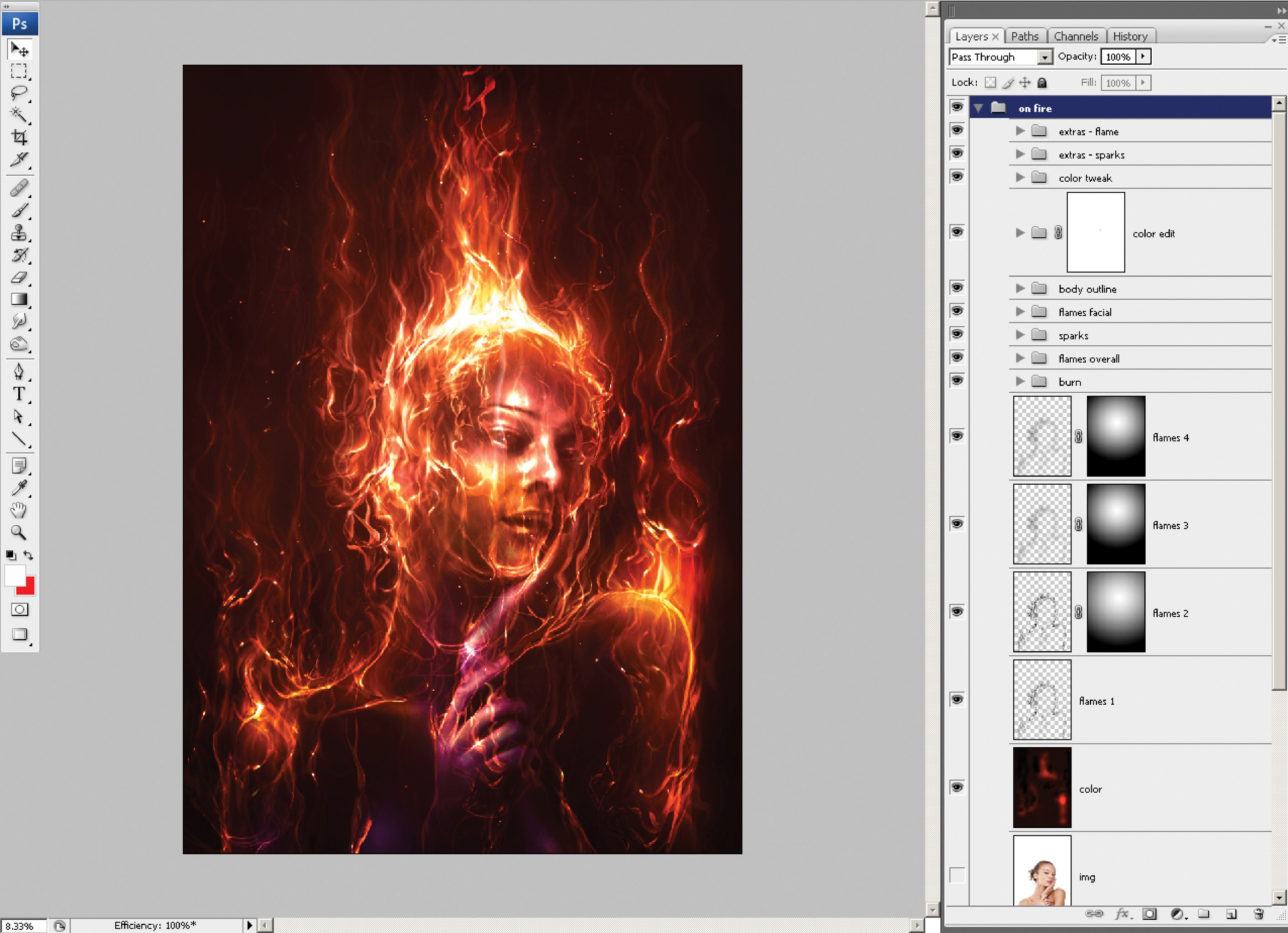
Photoshop for Graphics Design11 chapters · 114 topics+
Introduction of PhotoshopIntroduction of Graphics designTheory on graphic designingToolbarMenu BarOptions BarToolbox All NewOpenings and Existing FileScreen Model and standard Screen ModeFull Screen Mode with Menu BarCreating a New DocumentSaving Files, Reverting FilesClosing File and Quitting Photoshop
Document windowSelecting WorkspaceKeyboard shortcuts and MenuFile Handing preferences and curser preferencesDifference between Bitmap and Vector ImagesUnderstanding Images ResolutionUnderstanding pixcel LogicChanging the Resolution of an ImageChanging in the size of a DocumentRe-sampling an ImageEditing Image,Rotating an ImageCropping an ImageHiding an Image Instead of CroppingAdjusting the canvas size,Duplicating an Image
Working with selection ToolsWorking with selection ToolsMarquee ToolsMagic wand toolMaking a selection based on color rangeModifying a selectionAdding and substracting from a selectionExpand and contract commandsGrow and similar commandsDefine Edges and Inverse selection
Transforming a selectionScaling a selectionRotating a selectionDistorting a selectionSkewing a selectionWarping a selectionSaving and loading selection
Setting the current Foreground and Background color through pen toolColor picker Dialog BoxEverydropper ToolColor paletteSwathes paletteDrawing Tools Using Ellipse ToolCustom shapePen toolPainting Tools And Gradient Tool
Understanding color modeRGB Color ModeCMYKGrayscaleChanging the Color ModeMaking Color AdjustmentsColor LevelsCurves paletteBrightness/Contrast PaletteHue/Saturation, Histogram Palette
Working with Layer in PhotoshopAbout the LAYERS PaletteWorking with LayersCreating a New LayerHiding and Showing LayersDeleting Layers, Deleting a Layer using Layer MenuChanging the Stacking Order of the LayerRelocating Layers in the ImageMerging LayersFlattening ImagesMoving Layers between ImagesLinking and Un linking LayersWorking with Adjustment LayersApplying blend ModesMasking LayersLayer MaskingVector Masking Type MaskingShape Masking
Layer style and Filter EffectsLayer style and layer style DialogApply a layer styleCopy style clearing styleCreating layer from of layers stylesUsing filters, About smart objects and filteraCreating a smart objectEditing smart objectsFilter galleryApply the mosaic tiles filter, liquefy filterApply the vanishing point filterApplying the Artistic FiltersApplying the blure FiltersApplying the Brush stocke FiltersDistort and Noise FiltersSketch Filters ,Render Filters
3D and printing in PhotoshopCreating a actionPerforming photo merge in PhotoshopText editing and PhotoshopFinding and replacing textCreating 3D Atwork in PhotoshopCreating 3D shape and Editing 3D shapeLoading a new Texture to 3D shape
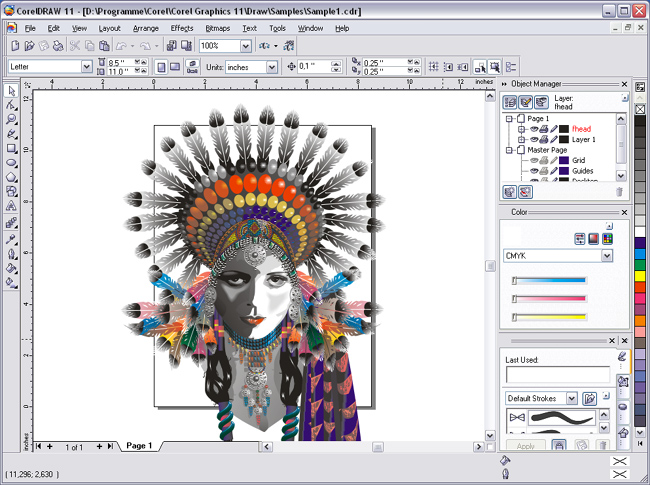
CorelDraw For Graphics Design17 chapters · 169 topics+
Getting startedInstalling CorelDRAW Graphics SuiteLearning ResourcesStarting and setting upCorelDRAW workspace bar
CorelDRAW basicsUnderstanding Vector graphics and bitmapsStarting and Opening DrawingScanning ImageWorking With multiple drawingUndoing, Redoing, and Repeating actionsZooming, Panning and ScrollingPreviewing drawingsChoosing Viewing modesWorking with viewsSaving drawingsWorking with locked filesBacking up and Recovering filesAdding and accessing drawing informationClose drawingsExploring basic tasks
Working with Lines, Outlines and brushstrokesDrawing LinesDrawing calligraphic and preset linesFormatting lines and outlinesAdding arrowheads to lines and curvesCopying, converting, and removing outlinesApplying brushstrokesSpraying objects along a lineDrawing dimension lines
Drawing ShapesDrawing rectangles and squaresDrawing ellipses, circles, arcs, and pie shapesDrawing polygons and starsDrawing spiralsDrawing gridsDrawing predefined shapesDrawing by using shape recognition
Shaping ObjectUsing curve objectsSelecting and moving nodesManipulating segmentsJoining curvesCopying and cutting segmentsAdding, removing, joining, and aligning nodesUsing node typesTransforming nodesBreaking the path of curve objectsMirroring changes in curve objectsSmudging and smearing objectsRoughening objectsSmoothing objectsShaping objects by attracting or pushing away nodesAdding twirl effectsShaping objects by using envelopesCropping and erasing objectsSplitting objectsTrimming objectsFilleting, scalloping, and chamfering cornersWelding and intersecting objectsCreating PowerClip objectsSetting options for nodes, handles, and previews
Working With ObjectsSelecting ObjectsTranforming objectsCopying, duplicating, and deleting objectsCreating objects from enclosed areasCreating a boundary around selected objectsusing object coordinates to draw and modify objectCoping object properties, transformations, and effectsCloning objectsPositioning objectAligning and distributing objectApplying object hintingSnapping objectsChanging the Order og objectSizing and scaling objectsRotating and mirroring Objectsusing the objectproperties docer to modify objectsGrouping objectsCombining objectsLocking objectsFinding and replacing objectsConstraining objects
Working with LayersAbout LayerCreating & editing layercopy moving & locking layersReordering layerUsing object manager
Using PowerclipsApplying countoursAdding drop shadowsUsing Interactive fillApplying DistortionUsing Interactive transperenciesApplying Mesh fill
Outlining and filling objectsUnderstanding color modelsChoosing colorsEyedropper and Paint bucket toolsThe outline tool choosing outline thicknessChoosing outline colour using fill toolUniform ,fountain, pattern, Interactive, mesh fillCopying attributesSetting outline and fill defaults
Special effecctsDrawing with the Artistic Media ToolDrawing an object with an EnvelopeUsing the Lenses effectAdding perspective to objectsExtruding an objectBlending two objects
TextAdding and manipulating textImporting and pasting textAdding artistic textAdding paragraph textAdding columns to text framesCombining and linking paragraph text framesAligning text by using the baseline gridselecting textFinding, editing, ad converting textShifting, rotating, mirroring, and flipping textMoving textWarpping textFitting text to a pathInserting special characters, symbols, and glyphsEmbedding graphicsWorking with lengacy textFormatting textWorking with text in different languagesManaging fontsUsing writing tools
Templates and stylesCreating templatesEditing templatesUsing templatesCreating styles and style setsApplying styles and style setsEditing styles and style setsExporting and importing style sheetsCreating and applying color stylesEditing & View color stylesExporting and Importing color styles
Pages and LayoutsSpecifying with page layoutChoosing a page backgroundAdding, Duplicating, remaining, and deleting pagesInsert page numbersUsing the rulersSetting up the document gridSetting up the baseline gridSetting and Modifying guidelinesSetting the drawing scale
BitmapsConverting Vector graphics to bitmapsImporting bitmapsCropping bitmapsChanging the dimension and resolution of bitmapsApplying special effects in bitmapsworking with colors bitmapsAdjusting color and toneTransforming color and toneWorking with bitmap color mode of bitmapsTracing bitmaps and editing traced results
PrintingPrinting your worksLaying out print jobsPriviewing print jobsApplying print styles
Web graphicsCreating objects for the webExporting bitmaps for the webSaving and applying web presetsExporting objects with transparent colors and backgroundsAdding bookmarks and hyperlinks to documentsExporting to HTML
File FormatsImporting filesExporting filesExporting document as PDF filesReducing the size of PDF filesWorking the text and fonts in PDF filesGIF, JPEG(JPG), JPEG 2000(JP), PaintBrush(PCX)Adobe Photoshop (PSD), and other formats
Adobe Illustrator For Graphics Design11 chapters · 66 topics+
Getting startedInstillationAdobe help
Work SpaceWork Area BasicCustomizing the WorkspaceToolsFile Template
DrawingDrawing BasicDrawing Simple Line and SpaceDrawing FlarsDrawing with the Pencil ToolDrawing with the pen toolEdit PathSymbols
ColorSelecting colorUsing and creating swatchesManaging swatchesWorking with color groupAdjusting color
Color managementUnderstanding color managementKeeping colors consistenceColor managing imported image
PaintingAbout paintingPainting with fills and strokesLive paint groupsBrushesTransparency and blending modesGradients, meshes and color blendsPattern
Selecting and arranging objectsSelecting objectGrouping and expanding objectsMoving, aligning, and distributing objectsRotating and reflecting objectUsing layerLocking hiding, and deleting objectsStacking objectsDuplicating object
Reshaping objectReshaping objectsTransforming objectScaling, shearing, and distorting objectsReshaping using envelopesCombining objectCutting and Dividing objectClipping masksBlending objectReshaping objects with effectsCreating 3D objects
Importing, Exporting SavingImporting filesImporting bits ImagesImporting Adobe pdf filesImporting, EPS, DCS, and AutoCAD filesImporting artwork Photoshop
TypeCreating and importanting typeWorking with Area typeWorking with type on a pathScalling and rotating typeSpelling and language dictionariesFontsFormatting typeLine and character spacingSpecial characters and Formatting paragraphTabExporting text
Creating special effectsAppearance attributesWorking with effects and filtersSummary of effects and filtersDrop shadow, glows, and feathering
Introduction to AutoCAD2.1 Introduction to AutoCAD History2.2 Exploring GUI (Graphical User Interface)2.3 Understanding the AutoCAD terminology2.4 How to install AutoCAD Student License2.5 Understanding the AutoCAD WorkspaceIntroduction to AutoCAD HistoryExploring GUI (Graphical User Interface)Understanding the AutoCAD terminologyHow to install AutoCAD Student LicenseUnderstanding the AutoCAD Workspace
Understanding the File Management Operations3.1 Starting a NEW AutoCAD File with NEW, QNew and STARTUP3.2 Open existing Drawing file3.3 Secure your file data with SAVE & SaveAS3.4 Understanding the AutoSave option3.5 Saving file in other version3.6 Understanding the AutoCAD file format3.7 Quiting AutoCAD- close,Exit/QuitStarting a NEW AutoCAD File with NEW, QNew and STARTUPOpen existing Drawing fileSecure your file data with SAVE & SaveASUnderstanding the AutoSave optionSaving file in other versionUnderstanding the AutoCAD file formatQuiting AutoCAD- close,Exit/Quit
4. Basic Operations4.1 Working with Mouse4.2 Understanding the Co-ordinate System4.3 Working with Co-ordinate System4.4 Understanding object selection method4.5 Working with Drawing Setting- limits and units4.6 Understanding the Drafting Setting4.7 Lines- You Will Use Them Everywhere4.8 Erase Unused objects4.9 Repeating the last command4.10 Understanding the Undo & Redo Operations
5. Display Control commands5.1 Understanding the Zoom Commands5.2 Understanding the Zoom Factor5.3 Understanding the PAN & MBUTTONPAN5.4 Understanding Regen & Viewres
6. Drawing and Drafting tools6.1 Polyline and their uses6.2 Spline and their uses6.3 Understanding the Defference between Line, Polyline & Spline6.4 Using Different types of Circle6.5 Using Different types of Arc6.6 Using Rectangle in Depth look6.7 Using Ellipse (Center, Axis-End & Ellipticle Arc)6.8 Using Polygon in Depth look6.9 Understanding the Construction line and Ray line6.10 Understanding the Point and their styles6.11 Divide – Measure –Not What You Would Think6.12 Understanding the Donut, Revision Cloud and Fill
7. Modify objects-Manipulation Commands7.1 Understanding and Using Copy Command7.2 Understanding and Using Move Command7.3 Deleting duplicate objects7.4 Understanding and Using Rotate Command7.5 Understanding and Using Mirror Command7.6 Understanding and Using Stretch Command7.7 Understanding and Using Scale Command7.8 Understanding and Using Offset Command7.9 Fillet object corners7.10 Chamfer object corners7.11 Trimming and Extending lines7.12 Understanding Array Command7.13 Using Rectangular Array7.14 Using Polar Array7.15 Using Path Array7.16 Understanding the Exploding Objects7.17 Joining To Objects Together7.18 Working with Multi-function Grips
9. Changing Objects Properties9.1 Assigning Object Color9.2 Understanding the Line Types9.3 Assigning Line Types9.4 Assigning Object Line Weight9.5 Checking and Modifying Object Properties9.6 Understanding the Match Type Properties
10. Object visibility10.1 Hide – Isolate – End Isolation On Selected Objects10.2 Transparency – Old Thing Just Fade Away10.3 Line Type Scale – Scale Size Is Relative10.4 Understanding the Draw Order
11. Using Layer Management11.1 Creating and Editing Layers11.2 Assigning New Layers in Existing Object11.3 How to Save Layers ?11.4 Opening Save Layer in Existing Drawings11.5 Using Layers to Plot Control11.6 Freeze Or Thaw, On Or Off And Locking Layers
12. Dimensioning12.1 Understanding Dimensioning concept12.2 Using Basic Dimensions (Linear, Aligned, Arc Length, Ordinate, Radius, Diameter, Jogged and Angular)12.3 Understanding and Using Continue & Baseline dimensions12.4 Adding tolerance Dimensions in the Object12.5 Adding Center mark12.6 Creating and Modifying Dimension style in Depth Look12.7 Using the Dimension Edit and Dimension Text Edit12.8 Understanding and Using leader Dimension12.9 Understanding and Using Mltileader Dimension12.10 Understanding and Using Mltileader Style Dimension
13. Hatch and Gradient13.1 Understanding Hatching concept13.2 Creating Basic Hatches13.3 Hatching in Depth look13.4 Using Gradient13.5 Mirror Hatch
14. Working with Text and table14.1 Creating Single Line Text14.2 Creating Multiline Text14.3 Creating and Modifiyig Text Style14.4 Using Mirror Text14.5 Checking Spelling14.6 Creating table14.7 Editing Table14.8 Linking Table to MSExcel14.9 Creating & Modifying Table Style
15. Working with Block and Wblock15.1 Understanding & Creating Block15.2 Inserting and Using Block15.3 Understanding & Creating W-Block15.4 Editing & Saving Blocks15.5 Creating Wblock with Base
20. Working with Clipboard Tools20.1 Using Cut, Copy and Copy with Base Point20.2 Using Paste Clip20.3 Using Paste As Block20.4 Using Copy Link and Paste original Co-ordinate20.5 Using Paste Special20.6 Using Hyperlink & Paste Hyperlink
21. Utilities & Inquiry Tools21.1 Using ID Point21.2 Using List Command21.3 Using Measuregeom command(Distance, Radius, Angle, Area & Volume)
23. Working with Existing Drawing23.1 Understanding external references23.2 Attaching External References23.3 Editing External References object23.4 Using external references Palettes
24. Understanding the Model Space, Paper or Layout Space and Plotting24.1 What is the Difference Between Printing and Plotting?24.2 Under Drawing Spaces (Model Space & Paper Space)24.3 Using Page setup for Layout24.4 Making and clipping viewports24.5 Making and clipping viewports24.6 Adding Layout with Title Block24.7 Inserting Title Block on Layout24.8 Adding Annotation on a Layout24.9 Printing or Plotting from Model space and Paper Space24.10 Understanding Plotstyle
26. Advance Operations26.1 Using Design Center Palettes26.2 Using Tool Palettes26.3 Understanding & Using QSELECT26.4 Select Similar – Pick It Once26.5 Add Select - Start a Command when you don't have to26.6 Renaming objects26.7 Using Quick Calculator26.8 Using Quick Calculator
1. Getting Started with 3D Modeling1.1 Introduction to AutoCAD 3D interface1.2 Setup 3D Workspace1.3 Understanding the View Cube and Orbit Tools1.4 Understanding the 3D Object Snap1.5 Understanding the Visual Styles1.6 Understanding Allow/ Disallow Dynamic UCS1.7 Manipulating the User Co-ordinate System1.8 Understanding Viewport Configuration
27. Creating Solid 3D Objects27.1 working with Solid Primitives
28. Creating 3D Objects from 2D Profiles28.1 Understanding the 2D Profiles and its works28.2 Using the Extrude Command28.3 Using the Revolve command28.4 Using the Loft Command28.5 Using the Sweep command28.6 Using the Polysolid Command28.7 Using the Press-pull Command
30. Modifying 3D Objects30.1 Using Gizmo Command- Move, Rotate and Scale30.2 Using object Culling30.3 Mirroring and Aligning object in 3D30.4 Mirroring and Aligning object in 3D30.5 Creating a Composite Solid- Using Boollion Operation: Union, Substract and Intersect30.6 Adding a Chamfer/ Chamfer Edge and Fillet/ Fillet Edge30.7 Editing Edges of a Solid - Extracting, Imprinting, Coloring and Copying Edges30.8 Editing Faces of a Solid- Extruding, Tapering, Moving/Offsetting, Copying, Deleting, Rotating and Coloring faces30.9 Editing Entire Solid- Separating and Shelling Solids30.10 Checking Solids for Interference, Slicing Solids and Thickening Surface30.11 Creating a Curve using Offsetting Edges30.12 Adding Automatic 2D Profile Views From 3D Solid View
32. Rendering and presentation32.1 Assigning Material to 3D Object32.2 Modifying Material Properties32.3 Adding Sun, Geolocation, date and time32.4 Adding Lights-Point, Spot, Web and Distance light32.5 Modifying Light Properties using with Light list32.6 Adding environment- Display, Sky background and Shadow32.7 Creating and Modifying Camera View32.8 Creating Named View32.9 Creating and Saving renderings as image file
Getting Started with 3D ModelingUnderstanding the 3D Object SnapUnderstanding the Visual StylesUnderstanding Allow/ Disallow Dynamic UCSManipulating the User Co-ordinate SystemUnderstanding Viewport Configuration
Basic OperationsWorking with MouseUnderstanding the Co-ordinate SystemWorking with Co-ordinate SystemUnderstanding object selection methodWorking with Drawing Setting- Units, limits & Displaying GridUnderstanding the Drafting SettingLines- You Will Use Them EverywhereErase Unused objectsWorking With Entering CommandsUnderstanding the Undo & Redo Operations
Display Control commandsUnderstanding the Zoom CommandsUnderstanding the Zoom FactorUnderstanding the PAN & MBUTTONPANUnderstanding Regen & Viewres
Drawing and Drafting toolsPolyline and their usesSpline and their usesUsing Different types of CircleUsing Different types of ArcUsing Rectangle in Depth lookUsing Ellipse (Center, Axis-End & Ellipticle Arc)Using Polygon in Depth lookUnderstanding the Construction line and Ray lineUnderstanding the Point and their stylesDivide – Measure –Not What You Would ThinkUnderstanding the Donut, Revision Cloud and Fill
Modify objects-Manipulation CommandsUnderstanding and Using Copy CommandUnderstanding and Using Move CommandDeleting duplicate objectsUnderstanding and Using Rotate CommandUnderstanding and Using Mirror CommandUnderstanding and Using Stretch CommandUnderstanding and Using Scale CommandUnderstanding and Using Offset CommandFillet object cornersChamfer object cornersTrimming and Extending linesUnderstanding Array CommandUsing Rectangular ArrayUsing Polar ArrayUsing Path ArrayUnderstanding the Exploding ObjectsBreaking and Joining ObjectsWorking with Multi-function GripsModify Associative Array
Changing Objects PropertiesAssigning Object ColorUnderstanding the Line TypesAssigning Line TypesAssigning Object Line WeightChecking and Modifying Object PropertiesUnderstanding the Match Type Properties
Object visibilityHide – Isolate – End Isolation On Selected ObjectsTransparency – Old Thing Just Fade AwayLine Type Scale – Scale Size Is RelativeUnderstanding the Draw Order
Using Layer ManagementCreating and Editing LayersAssigning New Layers in Existing ObjectHow to Save Layers ?Opening Save Layer in Existing DrawingsUsing Layers to Plot ControlFreeze Or Thaw, On Or Off And Locking LayersUnderstanding Layer in AutoCAD
DimensioningUnderstanding Dimensioning conceptUsing Basic Dimensions (Linear, Aligned, Arc Length, Ordinate, Radius, Diameter, Jogged and Angular)Understanding and Using Continue & Baseline dimensionsAdding tolerance Dimensions in the ObjectAdding Center markCreating and Modifying Dimension style in Depth LookUsing the Dimension Edit and Dimension Text EditUnderstanding and Using leader DimensionUnderstanding and Using Mltileader DimensionUnderstanding and Using Mltileader Style Dimension
Hatch and GradientUnderstanding Hatching conceptCreating Basic HatchesHatching in Depth lookUsing GradientMirror Hatch
Working with Text and tableCreating Single Line TextCreating Multiline TextCreating and Modifiyig Text StyleUsing Mirror TextChecking SpellingCreating tableEditing TableCreating & Modifying Table StyleModifying TextUnderstanding Text Concept in AutoCAD
Working with Block and WblockCreate & Insert BlockCreate WBlockCreate Wblock using BaseEdit, Save & Save As Block
Working with Clipboard ToolsUsing Cut, Copy and Copy with Base PointUsing Paste ClipUsing Paste As BlockUsing Copy Link and Paste original Co-ordinateUsing Paste SpecialUsing Hyperlink & Paste Hyperlink
Utilities & Inquiry ToolsUsing ID PointUsing List CommandUsing Measuregeom command(Distance, Radius, Angle, Area & Volume)
Understanding the Model Space, Paper or Layout Space and PlottingWhat is the Difference Between Printing and Plotting?Under Drawing Spaces (Model Space & Paper Space)Using Page setup for LayoutMaking and clipping viewportsAdding Layout with Title BlockInserting Title Block on LayoutAdding Annotation on a LayoutPrinting or Plotting from Model space and Paper SpaceUnderstanding Plotstyle
Advance OperationsUsing Design Center PalettesUsing Tool PalettesUnderstanding & Using QSELECTSelect Similar – Pick It OnceAdd Select - Start a Command when you don't have toRenaming objectsUsing Quick Calculator
Creating Solid 3D Objectsworking with Solid Primitives
Creating 3D Objects from 2D ProfilesUnderstanding the 2D Profiles and its worksUsing the Extrude CommandUsing the Revolve commandUsing the Loft CommandUsing the Sweep commandUsing the Polysolid CommandUsing the Press-pull Command
Modifying 3D ObjectsUsing Gizmo Command- Move, Rotate and ScaleUsing object CullingCreating a Composite Solid- Using Boollion Operation: Union, Substract and IntersectAdding a Chamfer/ Chamfer Edge and Fillet/ Fillet EdgeEditing Entire Solid- Separating and Shelling SolidsChecking Solids for Interference, Slicing Solids and Thickening Surface
Rendering and presentationAssigning Material to 3D ObjectModifying Material PropertiesAdding Sun, Geolocation, date and timeAdding Lights-Point, Spot, Web and Distance lightModifying Light Properties using with Light listAdding environment- Display, Sky background and ShadowCreating and Modifying Camera ViewCreating Named ViewCreating and Saving renderings as image file
Getting Started with Premiere ProVideo editing basics: frame rate, resolution, aspect ratioWorkspaces and panelsCreating projects and scratch disksImporting media and supported formatsProject panel, bins and metadata
Basic Editing on the TimelineCreating sequences that match footageSource monitor, in and out pointsInsert and overwrite editsSelection, razor and track select toolsRipple delete, markers and snapping
Advanced Trimming and EditingRipple, roll, slip and slide editsTrim mode and keyboard shortcutsJ and L cutsNesting and subclipsMulti-camera editing
Audio EditingAudio tracks, levels and the audio track mixerEssential Sound panel: dialogue, music, SFXNoise reduction and audio cleanupAudio keyframes and duckingSyncing external audio
Transitions, Effects and MotionVideo and audio transitionsEffect Controls: position, scale, rotation, opacityKeyframe animation and easingMasks and blend modesAdjustment layers
Speed, Stabilisation and CompositingSpeed/duration and time remappingWarp StabilizerGreen screen with Ultra KeyPicture-in-picture and split screens
Titles, Graphics and CaptionsText tool and Essential Graphics panelLower thirds and title templatesMotion graphics templatesSpeech to Text and captionsExporting captions and subtitles
Colour Correction and GradingLumetri Color panel basicsExposure, white balance and contrastCurves, colour wheels and HSL secondaryUsing LUTs and creative looksLumetri scopes
Exporting and DeliveryExport settings, codecs and bitrateH.264 presets for YouTube and social mediaExporting vertical and square videosAdobe Media Encoder queueProject archiving with Project Manager
Editing ProjectsProject: YouTube video with titles and musicProject: short reel for social mediaProject: event or corporate videoPortfolio review and assessment
AutoCAD Professional (2D+3D)32 chapters · 217 topics+
2DAutoCAD 2D
13 chapters · 107 topics
Introduction to AutoCADIntroduction to AutoCAD HistoryExploring GUI (Graphical User Interface)Understanding the AutoCAD terminologyHow to install AutoCAD Student LicenseUnderstanding the AutoCAD Workspace
Understanding the File Management OperationsStarting a NEW AutoCAD File with NEW, QNew and STARTUPOpen existing Drawing fileSecure your file data with SAVE & SaveASUnderstanding the AutoSave optionSaving file in other versionUnderstanding the AutoCAD file formatQuiting AutoCAD- close,Exit/Quit
Basic OperationsWorking with MouseUnderstanding the Co-ordinate SystemWorking with Co-ordinate SystemUnderstanding object selection methodWorking with Drawing Setting- 1. Units 2. limits 3. Displaying GridUnderstanding the Drafting SettingLines- You Will Use Them EverywhereErase Unused objectsWorking With Entering CommandsUnderstanding the Undo & Redo Operations
Display Control commandsUnderstanding the Zoom CommandsUnderstanding the Zoom FactorUnderstanding the PAN & MBUTTONPANUnderstanding Regen & ViewresUnderstanding the Concept behind the Zoom
Drawing and Drafting toolsPolyline and their usesSpline and their usesUsing Different types of CircleUsing Different types of ArcUsing Rectangle in Depth lookUsing Ellipse (Center, Axis-End & Ellipticle Arc)Using Polygon in Depth lookUnderstanding the Construction line and Ray lineUnderstanding the Point and their stylesDivide – Measure –Not What You Would ThinkUnderstanding the Donut, Revision Cloud and Fill
Modify objects-Manipulation CommandsUnderstanding and Using Copy CommandUnderstanding and Using Move CommandDeleting duplicate objectsUnderstanding and Using Rotate CommandUnderstanding and Using Mirror CommandUnderstanding and Using Stretch CommandUnderstanding and Using Scale CommandUnderstanding and Using Offset CommandFillet object cornersChamfer object cornersTrimming and Extending linesUnderstanding Array CommandUsing Rectangular ArrayUsing Polar ArrayUsing Path ArrayModify Associative ArrayUnderstanding the Exploding ObjectsBreaking and Joining ObjectsWorking with Multi-function Grips
Creating Isometric DrawingsUnderstanding the Basic Concept of Isometric DrawingUnderstanding the Isometric SettingsUnderstanding the ISOPLANECreating ISO Circle and ISO lineUnderstanding the concept to Creating Isometric Views
Changing Objects PropertiesAssigning Object ColorUnderstanding the Line TypesAssigning Line TypesAssigning Object Line WeightChecking and Modifying Object PropertiesUnderstanding the Match Type Properties
Object visibilityHide – Isolate – End Isolation On Selected ObjectsTransparency – Old Thing Just Fade AwayLine Type Scale – Scale Size Is RelativeUnderstanding the Draw Order
Working with Text and tableUnderstanding Text Concept in AutoCADCreating and Modifiyig Text StyleCreating Single Line TextCreating Multiline TextModifying TextChecking SpellingUsing Mirror TextCreating & Modifying Table StyleCreating tableLinking Table to MSExcelEditing Table
Hatch and GradientUnderstanding Hatching conceptCreating Basic HatchesHatching in Depth lookUsing GradientMirror Hatch
DimensioningUnderstanding Dimensioning conceptUsing Basic Dimensions (Linear, Aligned, Arc Length, Ordinate, Radius, Diameter, Jogged and Angular)Understanding and Using Continue & Baseline dimensionsAdding tolerance Dimensions in the ObjectAdding Center markCreating and Modifying Dimension style in Depth LookUsing the Dimension Edit and Dimension Text EditUnderstanding and Using leader DimensionUnderstanding and Using Mltileader DimensionUnderstanding and Using Mltileader Style Dimension
Understanding the Model Space, Paper or Layout Space and PlottingWhat is the Difference Between Printing and Plotting?Under Drawing Spaces (Model Space & Paper Space)Using Page setup for LayoutMaking and clipping viewportsAdding Layout with Title BlockInserting Title Block on LayoutAdding Annotation on a LayoutPrinting or Plotting from Model space and Paper SpaceUnderstanding Plotstyle
PTAutoCAD PT
12 chapters · 58 topics
Working with Block and WblockCreate & Insert BlockCreate WBlockCreate Wblock using BaseEdit, Save & Save As Block
Working with Attribute BlocksDefining Attribute BlockBlock Attribute ManagerModifying Block Attribute Definitions
Creating Parametric DrawingUnderstanding Parametric Drawing and ConstraintsApplying Geometric constraintsApplying Dimensional constraintsHide/Show and Delete ConstraintsConverting Dimensions into Dimensional ConstraintsChanging Dimensional Constraints using Grip Editing
Working with Dynamic block
Utilities & Inquiry ToolsUsing ID PointUsing List CommandUsing Measuregeom command(Distance, Radius, Angle, Area & Volume)
Working with Clipboard ToolsUsing Cut, Copy and Copy with Base PointUsing Paste ClipUsing Paste As BlockUsing Copy Link and Paste original Co-ordinateUsing Paste SpecialUsing Hyperlink & Paste Hyperlink
Using Layer ManagementUnderstanding Layer in AutoCADCreating and Editing LayersAssigning New Layers in Existing ObjectUsing Layers to Plot ControlFreeze Or Thaw, On Or Off And Locking LayersHow to Save Layers ?Opening Save Layer in Existing Drawings
OLE (Object Linking Embedding) conceptUnderstanding OLE ConceptLinking & Embedding Object into AutoCADLinking Data using Paste LinkUsing OLE LinksOpening OLE Source and Using OLE ScaleUsing OLE Hide & OLE FrameUsing OLE Quality & OLE Startup
Working with Existing DrawingUnderstanding external referencesAttaching External ReferencesEditing External References objectUsing external references Palettes
Sliding & ScriptingCreating and Saving SlidesOpening and using slidesCreating Script fileRunning Script fileCreating a Simple Project using with Script
Working with Annotative ScalingUnderstanding Annotation ScalingAdding Hatch with AnnotativeAdding Dim with AnnotativeAdding Text with AnnotativeAdding MLeader with AnnotativeAdding Block with Annotative
Advance OperationsUsing Design Center PalettesUsing Tool PalettesUnderstanding & Using QSELECTSelect Similar – Pick It OnceAdd Select - Start a Command when you don't have toRenaming objectsUsing Quick Calculator
3DAutoCAD 3D
7 chapters · 52 topics
Getting Started with 3D ModelingIntroduction to AutoCAD 3D interfaceSetup 3D WorkspaceUnderstanding the View Cube and Orbit ToolsUnderstanding the 3D Object SnapUnderstanding the Visual StylesUnderstanding Allow/ Disallow Dynamic UCSManipulating the User Co-ordinate SystemUnderstanding Viewport Configuration
Creating Solid 3D Objectsworking with Solid Primitives
Creating 3D Objects from 2D ProfilesUnderstanding the 2D Profiles and its worksUsing the Extrude CommandUsing the Revolve commandUsing the Loft CommandUsing the Sweep commandUsing the Polysolid CommandUsing the Press-pull Command
Working with Meshing ToolsControlling mesh primitive optionUsing Revolved Mesh, Edge Mesh, Ruled Mesh & Tabulated MeshSmoothing Mesh with Smooth Object, Smooth More, Smooth Less & Refining MeshUsing Adding/Removing a Crease and Controlling mesh Tessellation option commandUsing Extruding, splitting and Merging mesh faces CommandUsing Creating & Closing a Hole in a Mesh, Collapsing a Face/Edge and Spinning a Triangle Face CommandUsing Converting a Mesh to a Solid and Surface CommandConverting 3D Object in to a Mesh
Modifying 3D ObjectsUsing Gizmo Command- Move, Rotate and ScaleUsing object CullingMirroring and Aligning object in 3DMirroring and Aligning object in 3DCreating a Composite Solid- Using Boollion Operation: Union, Substract and IntersectAdding a Chamfer/ Chamfer Edge and Fillet/ Fillet EdgeEditing Edges of a Solid - Extracting, Imprinting, Coloring and Copying EdgesEditing Faces of a Solid- Extruding, Tapering, Moving/Offsetting, Copying, Deleting, Rotating and Coloring facesEditing Entire Solid- Separating and Shelling SolidsChecking Solids for Interference, Slicing Solids and Thickening SurfaceCreating a Curve using Offsetting EdgesAdding Automatic 2D Profile Views From 3D Solid View
Working with Surface ToolsCreating a Surface with Network, Lofted, Swept, Planer, Extruded and Revolved Surface CommandCreating a Blend, Patch and Offset SurfaceConverting a Surface into a Nurbs SurfaceEditing Control Vertices on a Nurbs SurfaceDisplaying and Hiding Control Vertices on Nurbs SurfaceRebuilding, Adding and Removing Control VerticesProjecting curves on to a Surface
Rendering and presentationAssigning Material to 3D ObjectModifying Material PropertiesAdding Sun, Geolocation, date and timeAdding Lights-Point, Spot, Web and Distance lightModifying Light Properties using with Light listAdding environment- Display, Sky background and ShadowCreating and Modifying Camera ViewCreating Named ViewCreating and Saving renderings as image file
Introduction to UI/UX and FigmaDifference between UI and UXWhere Figma fits in the design processFigma accounts, teams, projects and filesInterface: canvas, layers, toolbar and properties panelPages, frames and basic navigation
UX Research and WireframingUser research methods and interviewsPersonas and user journeysInformation architecture and user flowsLow-fidelity wireframesUsing FigJam for brainstorming and flows
Design Basics in FigmaShapes, boolean operations and masksPen tool and vector editingText, typography and type scaleColour, gradients and colour contrastImages, effects and blendingExport settings for icons and images
Frames, Layout Grids and ConstraintsDevice frames for mobile, tablet and desktopColumn, row and baseline gridsConstraints for resizingSpacing systems and alignmentGroups versus frames
Auto LayoutCreating auto layout framesPadding, spacing and alignmentHug, fill and fixed sizingNested auto layout for cards and listsResponsive buttons, forms and navigation barsWrap and absolute positioning
Components and VariantsMain components and instancesOverrides and swapping instancesVariants for states and sizesComponent properties: boolean, text and instance swapBuilding buttons, inputs and cards as componentsOrganising a component page
Styles and VariablesColour, text, effect and grid stylesVariables for colour, number and spacingModes for light and dark themesApplying variables across designsNaming conventions
PrototypingConnections, triggers and actionsTransitions and Smart AnimateOverlays, modals and dropdownsScrolling and fixed elementsInteractive componentsPresenting and sharing prototypes
Usability Testing and AccessibilityPlanning a simple usability testCollecting and acting on feedbackAccessibility basics: contrast, text size and touch targetsIterating designs after testingComments and collaboration in Figma
Design Systems and Developer HandoffStructure of a design systemPublishing and using team librariesDocumenting componentsDev Mode and inspect panelExporting assets and sharing specsUseful Figma plugins
UI/UX Case Study ProjectProject brief: mobile app or websiteResearch, personas and user flowsWireframes and high-fidelity screensComponents and interactive prototypePortfolio case study presentation
CADD Training Centre offers 5 Graphic Designing courses at Associate level: Associate Course in CorelDRAW for Graphics Design, Associate Course in PhotoShop for Graphics Design, Associate Course in Adobe Illustator for Graphics Design, Associate Course in Graphics Design, Associate Course in Digital Video Editing.
Which software will I learn in Graphic Designing?
Photoshop for Graphics Design, CorelDraw For Graphics Design, Adobe Illustrator For Graphics Design, Photoshop, Adobe Premiere Pro, AutoCAD Professional (2D+3D), Figma.
How long are the Graphic Designing courses?
From 80 Hours for a short course; every course page lists its software and duration.
Can I learn Graphic Designing online?
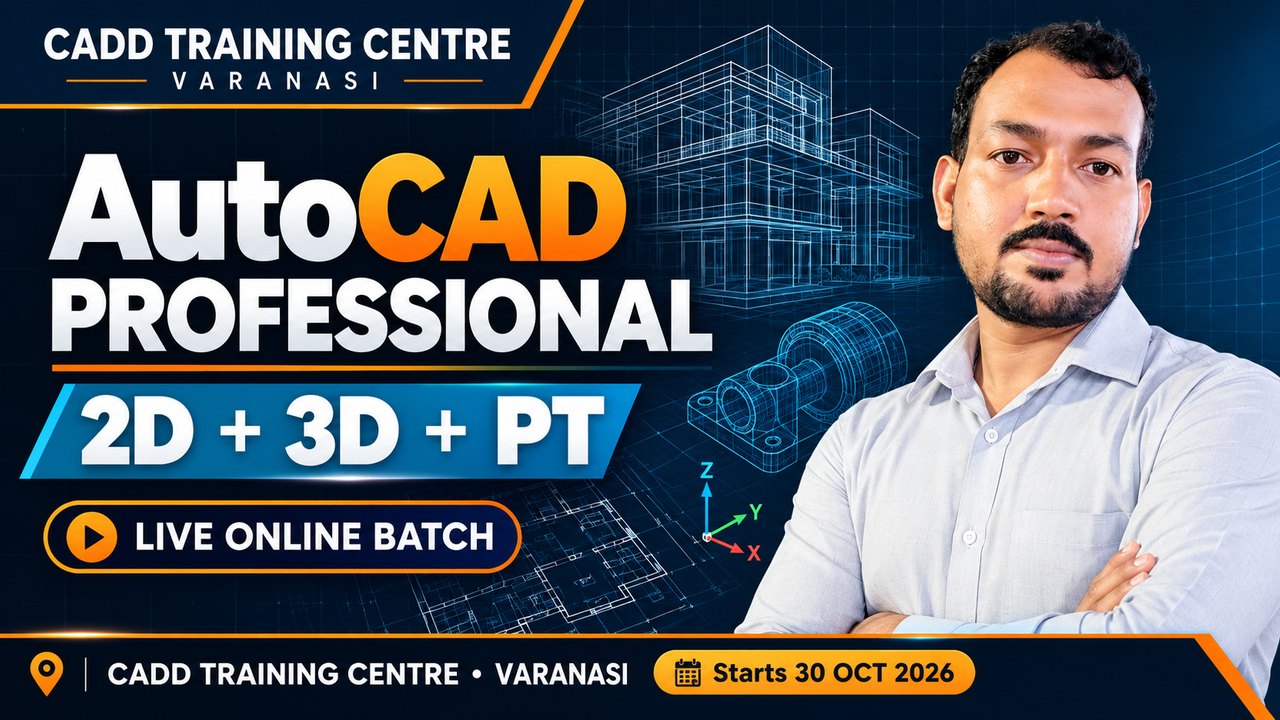
Yes. Live online batches are open now (AutoCAD Professional (2D+3D+PT) Course) -- instructor-led classes in the CADD app with recordings.
Will I get a certificate?
Yes. After the course exam you get a CADD Training Centre certificate that anyone can verify online.